Allegion Developer Portal
Allegion Developer Portal

If your MT20W is already Commissioned at your site, there are two options to confirm the MT20W firmware version; use your desktop application or your mobile application.
NOTE: For USB communication, the MT20W firmware must be at version 39.02.00 or higher.
To verify the current MT20W firmware revision:
Open the ENGAGE Web Application on your desktop.
Navigate to the ADVANCED tab.
Select Firmware.
Locate the MT20W device in the Device List.
View the MT20W Current Firmware Version versus the Latest Firmware Version.
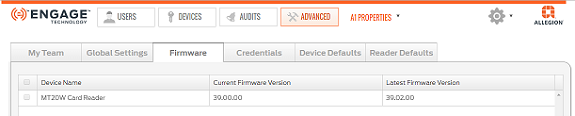
NOTE: In this case the MT20W firmware is not at the latest revision.
This process assumes that there is a WiFi network already saved and available for use by the mobile application.
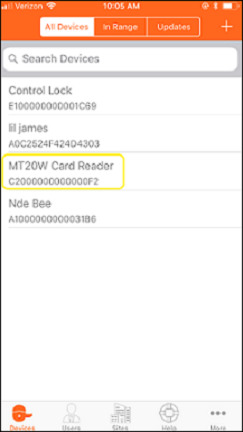
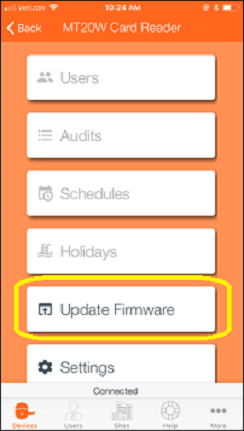
Verify the MT20W has latest Firmware by following steps 1 through 3 below:
| 1. Select MT20W device | 2. Select Update Firmware | 3. Is Firmware Current? |
|---|---|---|
 |  | 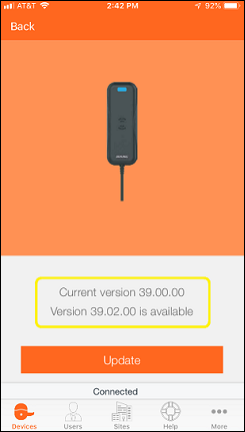 |
When the current firmware version is earlier than version 39.02.00, you must update the firmware when using USB communication.
Click on the Update button from the mobile app to update the firmware.
The Initiating firmware download screen displays.
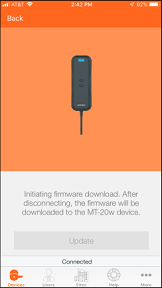
The firmware is downloaded to the MT20W.
The Installing firmware screen displays.
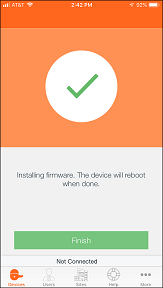
Click Finish.
The blank In Range mobile display is shown.
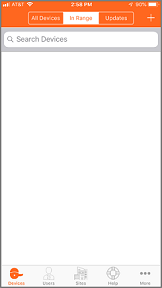
The MT20W automatically finishes its firmware installation process and reboots. Be patient, this may take a few minutes. Wait for all LED flashing to stop.
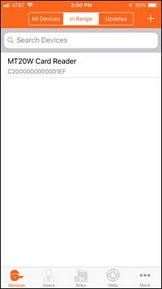
The boot-up process is complete and the MT20W is communicating when a solid BLUE LED shows.
The mobile app screen does not update again until the User swipes down to refresh the screen or navigates away and comes back to the All devices or In Range screen.
Last Modified: October 15, 2019