Allegion Developer Portal
Allegion Developer Portal

| VERSION | Date | DESCRIPTION OF CHANGE | AUTHOR |
|---|---|---|---|
| 0.01 | 01/16/2019 | Initial Draft | R. Verde |
| 0.02 | 01/22/2019 | Reformatted draft to adjust spacing, edited grammar. | A. Clark |
| 0.03 | 07/01/2019 | Updated content to show latest information | A. Clark |
The primary purpose of this document is to provide instruction on the setup for a Gateway in IP mode to be communicated through API calls via Postman. Postman enables our SAM partner to make API development simpler to understand.
| Abbreviation | Definition |
|---|---|
| API | Application Program Interface – The interface provided by the ENGAGE enabled devices and Web Application |
| BLE | Bluetooth Low Energy |
| Commission | Process in which the device gets a replaceable encryption key (REK) or the site key. |
| Db, DB | Database |
| DHCP | Dynamic Host Configuration Protocol |
| Edge Device | Any ENGAGE enabled device used for access control such as an NDE or LE lock. |
| ENGAGE | Connectivity Platform Technology |
| Host or Host Server | An Alliance Partner server, external server outside of the Allegion domain |
| HTTP | Hypertext Transfer Protocol |
| HTTPS | HTTP Secure, or HTTP over SSL |
| IP | Internet Protocol |
| IPv4 | Internet Protocol version 4 |
| JSON | Java Script Object Notation |
| LAN | Local Area Network |
| MAPP | Mobile Application |
| Mobile Device | A hand-held computer that is made for portability. (i.e. tablets, smart phones, iPads, etc.) |
| NDE | Schlage ENGAGE™ Wireless Cylindrical Lock |
| REST | Representational State Transfer, RESTful web services provide a means of computer system interoperability using a predefined set of stateless operations. W3 Consortium REST Notes are located here |
| SAM | Allegion ENGAGE Software Alliance Member |
| Site | Logical grouping of ENGAGE devices which all share the same site key. In Engage this is referred to as a facility. |
| Site Key | The site key is a key that is used on all Engage enabled devices on a site, (e.g. In a building or on a floor in a building). |
| SSL | Secure Sockets Layer, a standard security technology which allows encrypted links to be established between nodes is a network |
| TLS | Transport Layer Security, cryptographic protocol allowing for secure communications |
NOTE: APIs shown within this page are only examples of some of the APIs used in POSTMAN and are not intended to be an all inclusive list. The User can click on the links below to go to the detail page for each API if more information is needed.
GET {{GatewayIP}}/gateway/newCredentials
PUT {{GatewayIP}}/gateway/newCredentials
GET {{GatewayIP}}/edgeDevices/linkList
GET {{GatewayIP}}/edgeDevices/lockStatus
PUT {{GatewayIP}}/edgeDevices/dev00000/database
Log into your ENGAGE Partner Managed account with the Mobile Application (MAPP)
Commission the ENGAGE device
Connect the Gateway to the local area network. Gateway and host PC (POSTMAN) must be on the same subnet
Commission the Gateway
On the MAPP
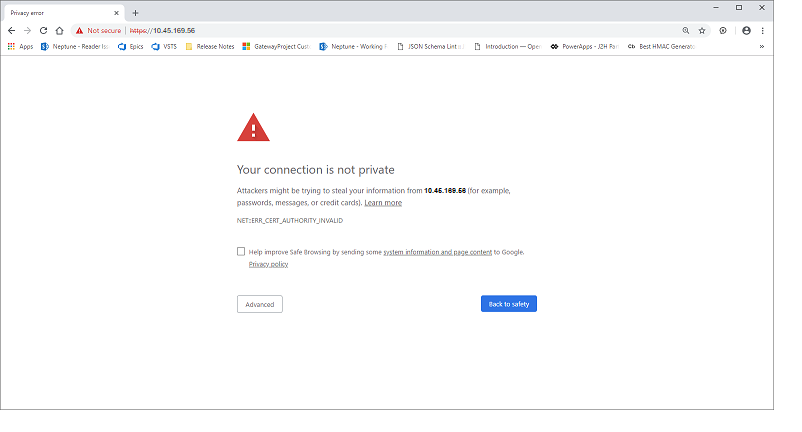
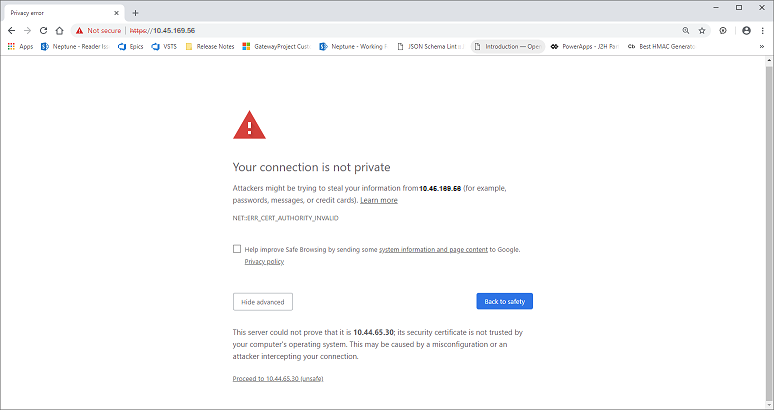
The Certificate needs to be validated
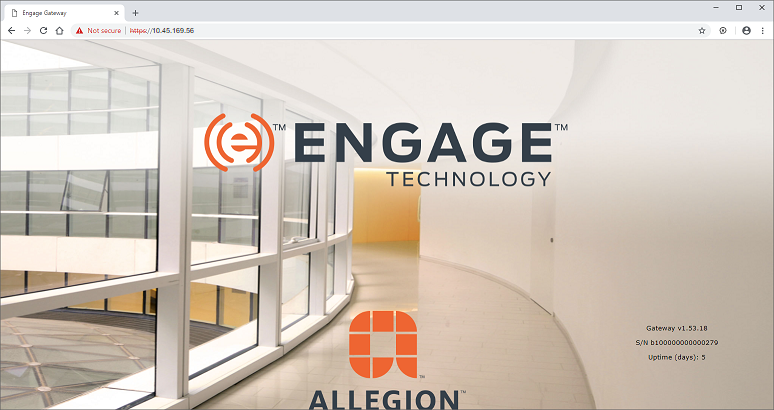
Using the host PC, connect to the Gateway by browsing to its IP address
Gateway uses TLS protocol to communicate
Example: Browse to https://10.45.169.56 using Google Chrome
Select Advanced
Postman needs to be installed on the host PC. Postman can be downloaded for free from https://www.getpostman.com
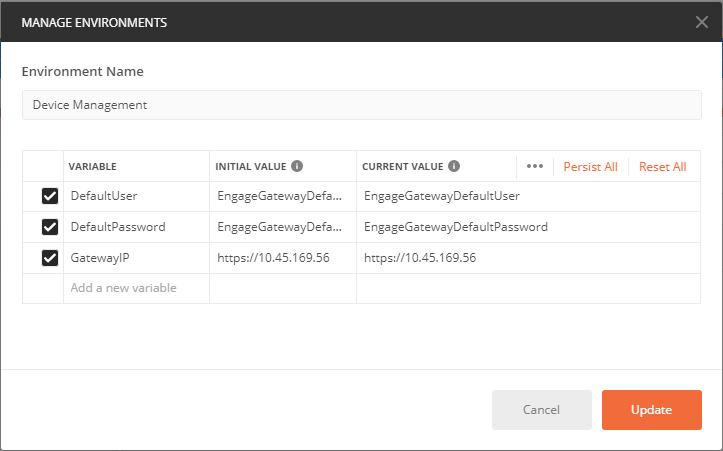
Create an Environment
Select Manage Environments and click Add
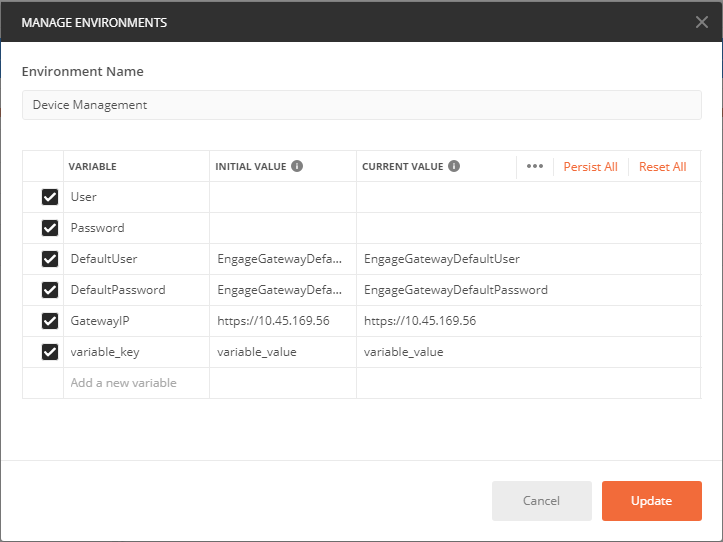
Include the following variables initially:
Open Postman and perform the following steps:
Select the environment created and import the collection of APIs into Postman
Figure 1: API = GET {{GatewayIP}}/gateway/newCredentials
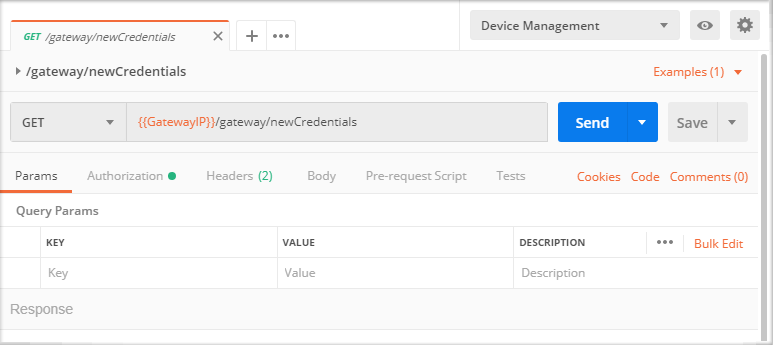
Set the following Current Values in the Postman Environment Name quick look view, Figure 2.
Figure 2: Manage Environments
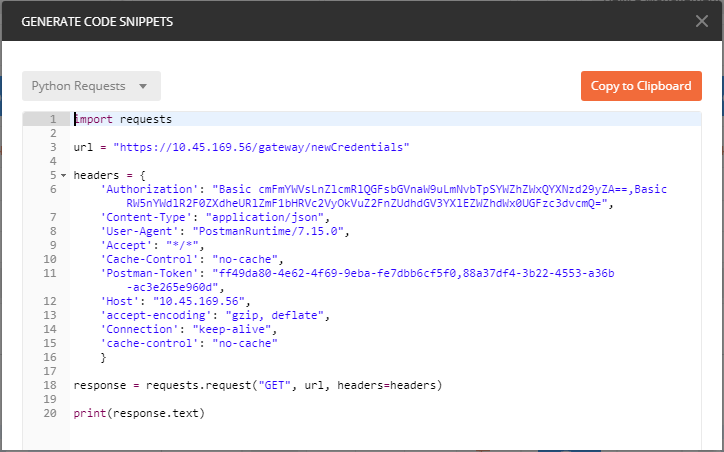
The actual message that Postman sends to the Gateway is shown in Figure 3 to highlight what Postman is sending and does not require action by the operator.
Figure 3: Postman Message Sent to Gateway
The return message from the newCredentials API command is shown in Figure 4 and does not require action by the operator.
Figure 4: Return Message
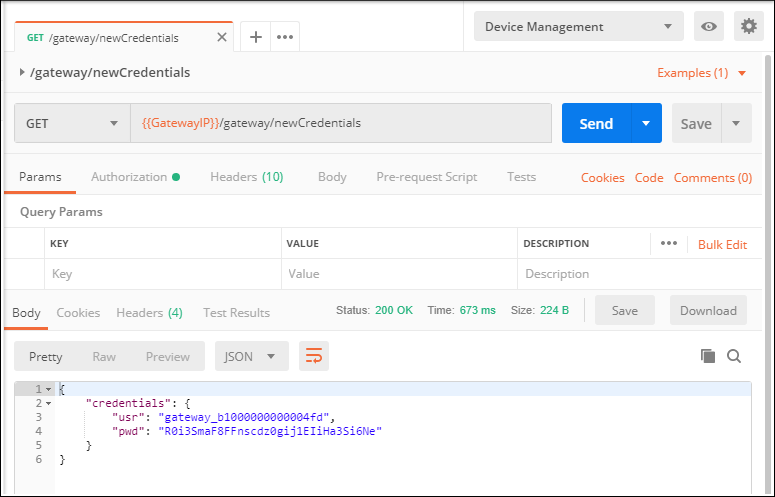
Figure 5 shows the modifications necessary to the Postman Environment quick look.
Figure 5: Postman Environment Modifications
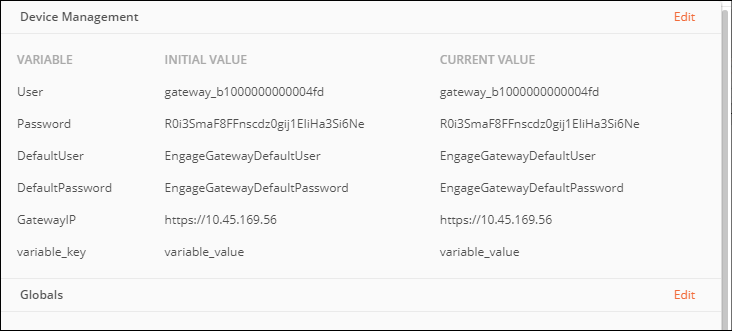
Adding User and Password. Figure 6 shows the PUT newCredentials command.
Figure 6: API = PUT {{GatewayIP}}/gateway/newCredentials
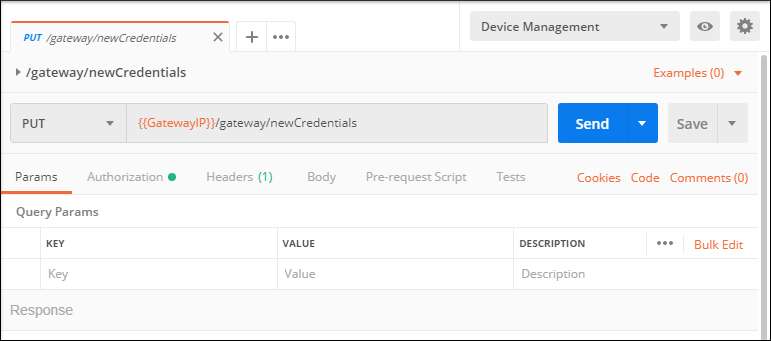
Figure 7 illustrates the command Postman sends to the Gateway. No user interaction is necessary. This figure is shown for display purposes only.
Figure 7: Command Postman Sends to Gateway
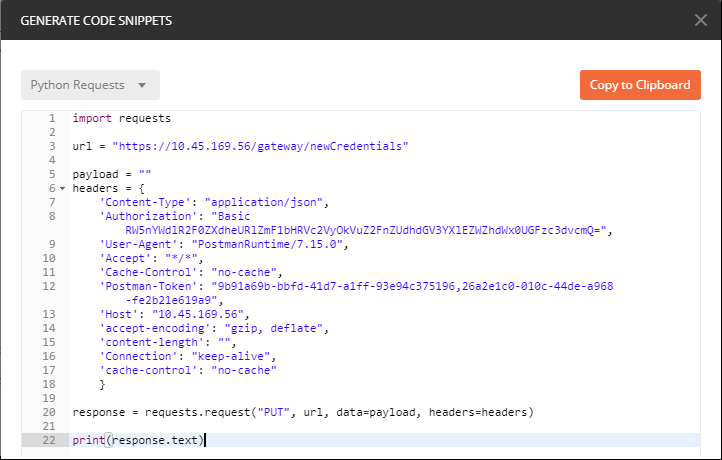
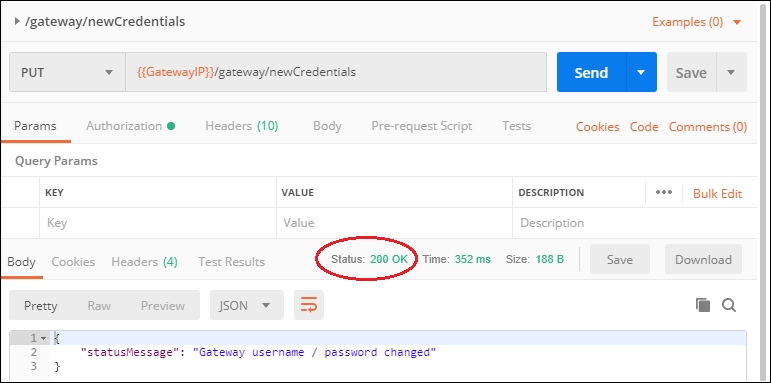
Figure 8 shows the successful transaction completed; note the Status: 200 OK.
Note:
All Postman commands are sent by selecting the Send button.
Figure 3 and Figure 7 are obtained by selecting the Code button.
Connect to Gateway through Mobile app
Select Link Devices and add device
An audible confirmation will be heard from the device with the app also indicating a successful link
To confirm the device is linked to the Gateway, perform the following GET:
GET {{GatewayIP}}/edgeDevices/linkList
)_edgeDevices_linkList.png)
Perform a GET on lock status
GET {{GatewayIP}}/edgeDevices/lockStatus
)_edgeDevices_lockStatus.png)
Perform a PUT of a database to the device.
PUT {{GatewayIP}}/edgeDevices/dev00000/database
)_edgeDevices_dev00000_database.png)
The SAM partner should review the collection of APIs and understand how they can be used in their integration.