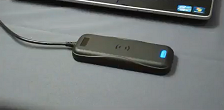
The Schlage MT20W must be used to initially enroll Smart credentials and to read and write information to the credentials and to enable No Tour functionality. No Tour functionality access rights and programming information is written to the credential and then the programming information is transferred to the ENGAGE™ devices when the credential is presented to the device at the door.
ENGAGE reads the Smart credential serial number of a credential presented to the Schlage MT20W, applies the required updates from the ENGAGE database and program updates onto the credential.
The credential is prepared to update the door programming when presented to the device by the User.
To begin:
Make all access assignments, user schedule and updates for the resident in ENGAGE™ as necessary.
Ensure the Schlage MT20W is powered up and communicating.
The Schlage MT20W takes a few seconds to boot-up and begin communicating.
The Schlage MT20W LED is solid Blue when the MT20W is ready for use.
NOTE: There is no requirement for the Property Manager to open the ENGAGE Web Application during No Tour credential programming. Access updates that are already defined in ENGAGE are programmed onto the Smart credential automatically.
Place the Users’ Smart credential to be programmed with new Access Rights on the Schlage MT20W.
The Schlage MT20W LED turns solid GREEN to begin the programming process, followed by one beep. This indicates that the credential serial number has been read by the Schlage MT20W to start the process.
Leave the credential on the Schlage MT20W until it provides its programming success message indicating that the credential programming process is completed.
The PROGRAMMING SUCCESS message is three (3) GREEN LED blinks and beeps.
If the PROGRAMMING SUCCESS message is NOT provided, see the No Tour Credential Programming Failure section below:
Wait for the Schlage MT20W to provide the programming success message.
VERIFY SUCCESS
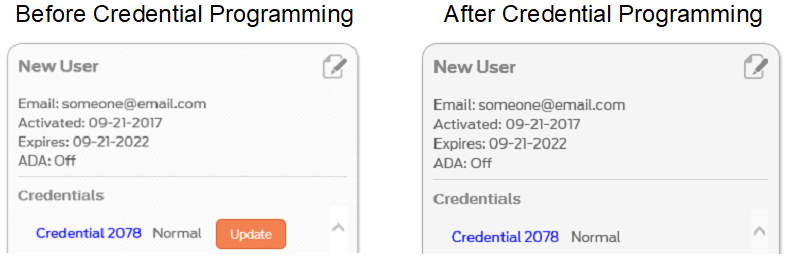
Open the ENGAGE Web Application.
Verify the ENGAGE orange Update ICONs are no longer displayed next to the resident’s credential listing.
This indicates that the credential is programmed with the latest updates.
Complete the No Tour programming process by physically presenting the newly programmed credential to all affected devices.

 ICONs are no longer displayed next to the resident’s credential listing.