Generating_an_Intermediate_Pair_Certificate
Generating an Intermediate Pair Certificate
Intermediate certificates are used as a stand-in for our root certificate. We use intermediate certificates as a proxy because we must keep our root certificate behind numerous layers of security, ensuring its keys are absolutely inaccessible.
However, because the root certificate itself signed the intermediate certificate, the intermediate certificate can be used to sign the SSLs our customers install and maintain the "Chain of Trust."
For security reasons, it is best practice to have the Intermediate certificate sign server certificates.
All certificates in this example are generated with OpenSSL.
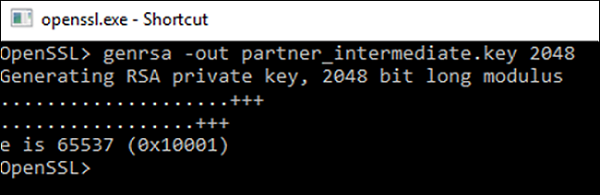
Generate a 2048 bit RSA Key for the Intermediate CA
This key should be stored in the inter.key folder.
Command
- OpenSSL> genrsa -out partner_intermediate.key 2048
Image Example
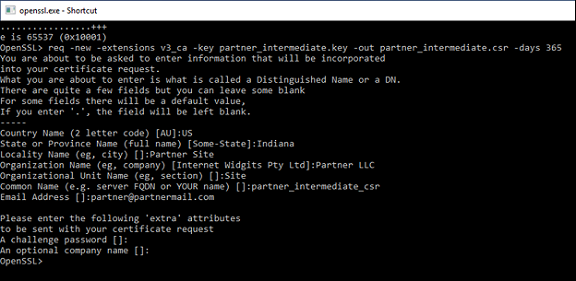
Generate a csr from the Intermediate Key.( Certificate Signing Request )
Command
- OpenSSL> req -new -extensions v3_ca -key partner_intermediate.key -out partner_intermediate.csr -days 365
Image Example
CA Signs Intermediate Certificate
Once the request for Intermediate Certificate is made it must be signed by the root CA.
Command
- OpenSSL> ca -verbose -in partner_intermediate.csr -out partner_intermediate.crt -cert partner_CA.crt -keyfile partner_CA.key -days 365
Image Example
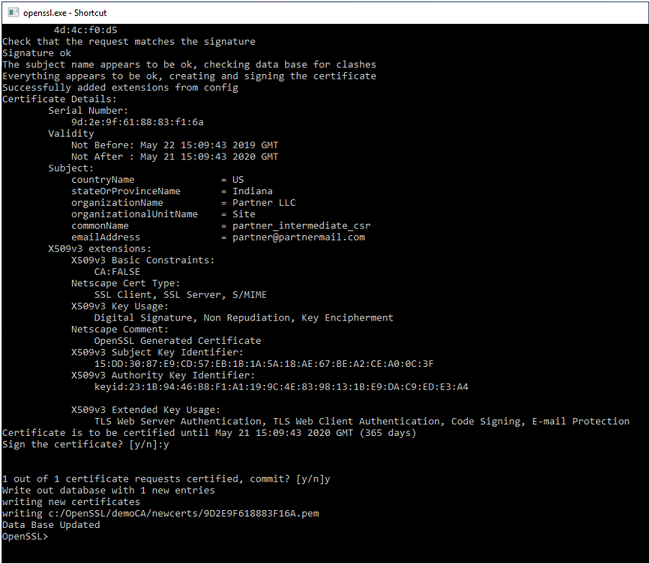
An intermediate CA has been created and can be used to sign other certificates.
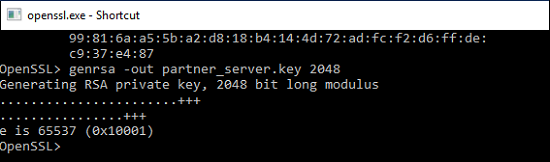
Generate the Server Key
Command
- OpenSSL> genrsa -out partner_server.key 2048
Image Example
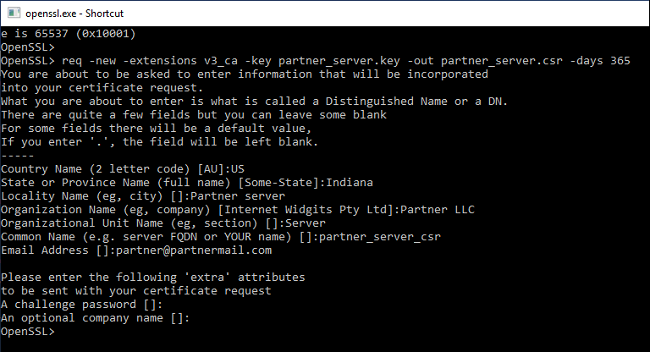
Generate the Server csr from the Server Key
Command
- OpenSSL> req -new -extensions v3_ca -key partner_server.key -out partner_server.csr -days 365
Image Example
Convert Intermediate Certificate to der Format
Command
- OpenSSL> x509 -outform der -in partner_intermediate.crt -out partner_intermediate.der
Image Example

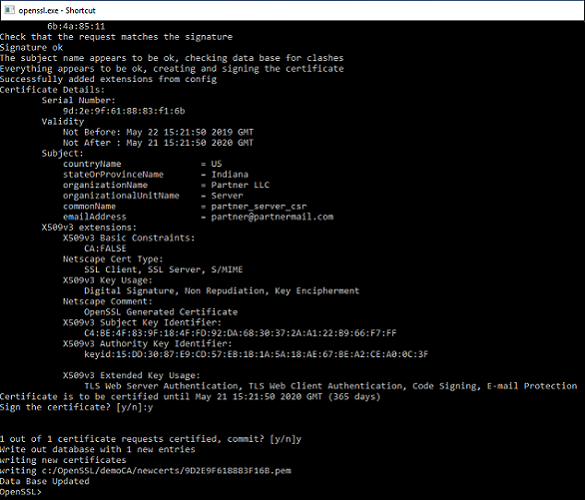
Intermediate Certificate and Intermediate Key Signs Server Certificate
Command
- OpenSSL> ca -verbose -in partner_server.csr -out partner_server.pem -cert partner_intermediate.crt -keyfile partner_intermediate.key -days 365
Image Example
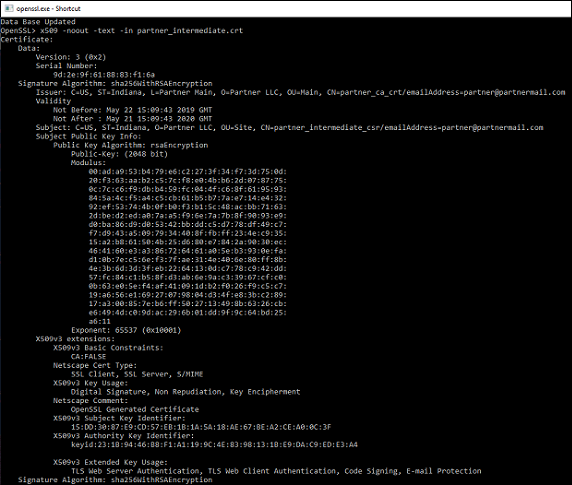
Verify the Server Certificate has a Valid Chain of Trust.
Using the certificate chain created before, the chain of trust can be verified.
Command
- OpenSSL> x509 -noout -text -in partner_intermediate.crt
Image Example
Calculating a HASH Value for the Certificate
In this example the partner_CA.der file is downloaded and processed by the device. The next step generates a “HASH” of that file.
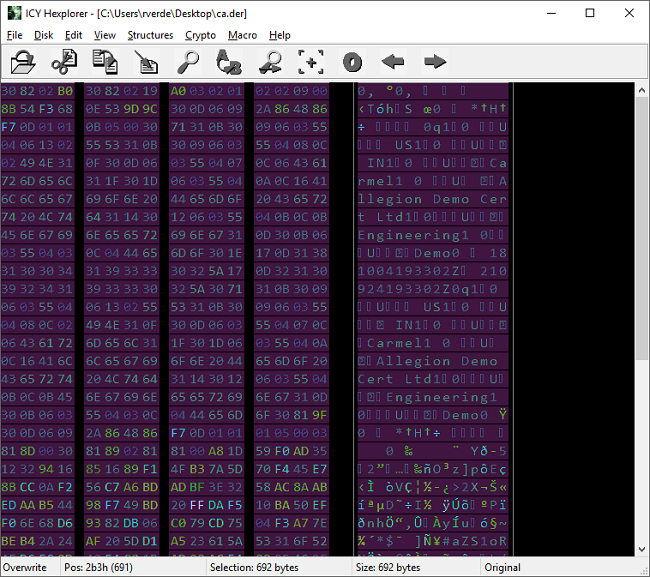
Hexplorer is an editor that converts the der file to a hex file for the hash to be generated. Download the Hexplorer editor and install it.
Download NotePad++ and install it. This is used in the hash generation process.
Using Hexplorer, open the DER file and save it as a Hex String.
- In this example open the ‘partner_CA.der’ file using Hexplorer.
- Select “Edit” from the top row of commands in Hexplorer
- Choose “Select All” from the drop-down menu
- Again under “Edit” select “Copy As”
Image Example
Create One (1) long string
Using Notepad ++, paste the hex string into a new document.
- In notepad++ choose “File” select “New” from dropdown.
- Under “Edit” select “Paste”
- This pastes the hex representation of the der file into notepad.
- Here the file is multiple lines of hex values. These must be edited into one long continuous string of hex values.
Example 1: Notepad++ “new 2” file output
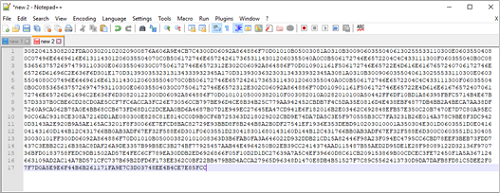
- Delete the new line character at the beginning of each line, which yields one (1) line that contains all the hex characters.
- Be careful not to delete hex characters.
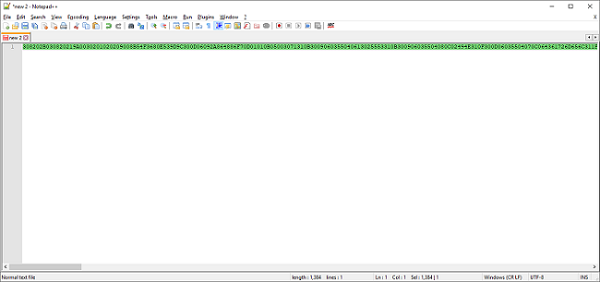
- The desired string of characters will be in one long line of hex characters.
Example 2: One line of Hex Characters:
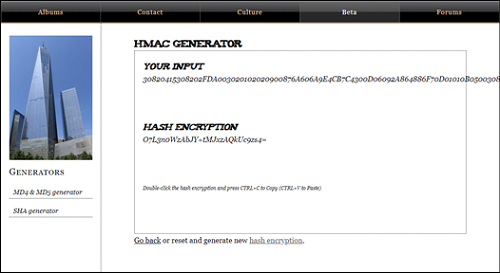
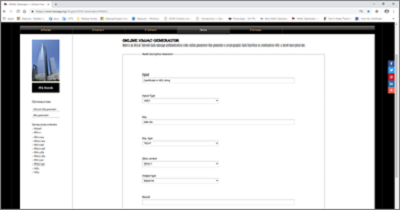
Using an online Hash Encryption Generator (see URL below), create the Base 64 HMAC value. The result from the website below is needed for the hash that is returned to the ENGAGE device.
Example 3: Hash Encryption Generator
- From Example 2, perform the following:
- From “Edit” choose “Select All”
- From “Edit” choose “copy”
- In the online HMAC generator
- Input is the data above in the copy
- Paste that data to input
- Input Type = HEX
- Key – the base 64 site key used when the partner site was created
- Key type = HEX
- SHA variant = SHA-1
- Output Type = Base-64
- Result is the Hash value from the certificate and your site key
- In the example below, the HASH ENCRYPTION is the hash value served by the API server
Example 4: Hash Encryption