Schlage™ BLE Mobile Credentials - API Only Solution Overview

Last modified: 12.10.2024

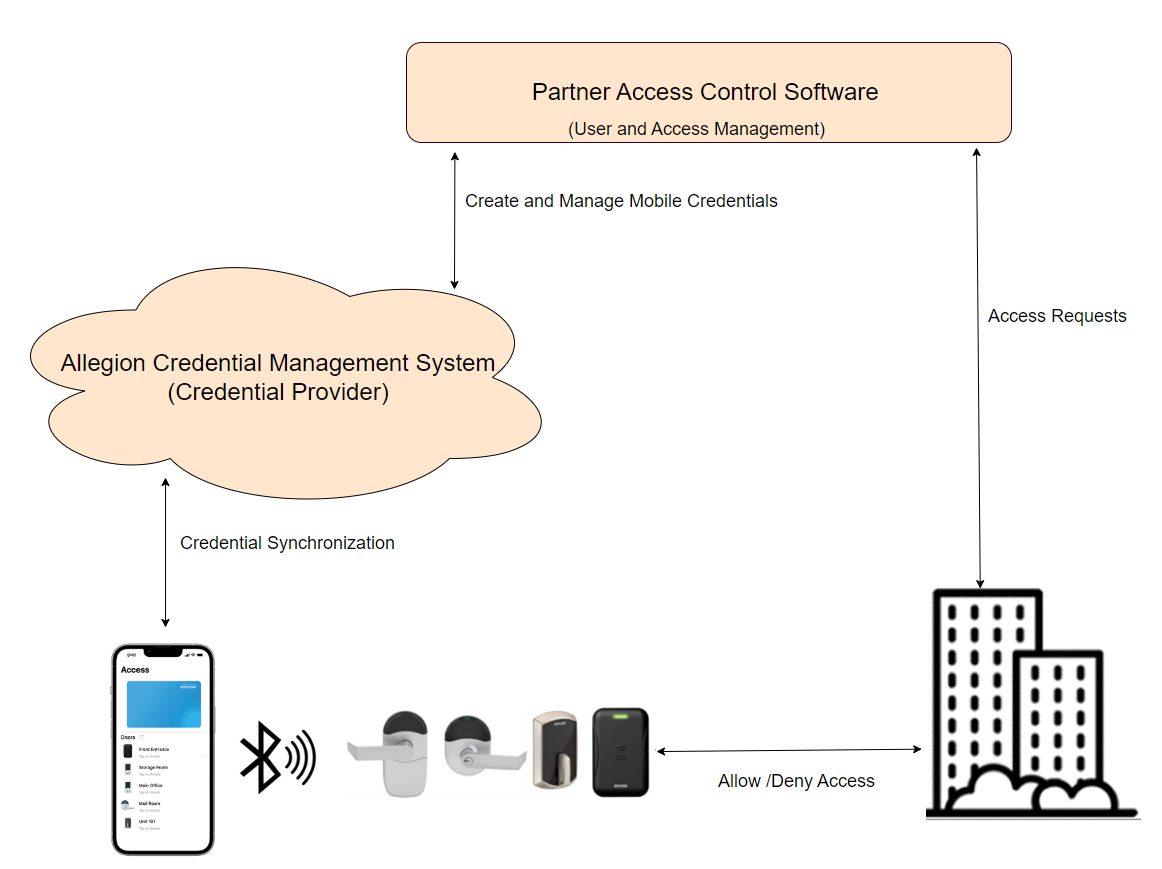
The API-Only solution is specifically designed for Physical Access Control Software (PACS) partners who wish to seamlessly integrate Schlage™ Mobile Bluetooth Credentials into their access control software, eliminating the need to develop their own mobile application for delivering mobile credentials to locks or readers. With the Schlage™ Mobile Access app, users can conveniently unlock Allegion ENGAGE™ devices.

With this solution, software partners can manage end user mobile Bluetooth credentials by seamlessly integrating the provided APIs with their access control software.

Please note that while the Physical Access Control Software partners can utilize the API-Only solution for managing mobile credentials, a separate mobile app is still required for tasks such as lock setup, configuration changes, firmware updates, retrieving audits, and more.

The purpose of this guide is to provide software development teams with a comprehensive walkthrough of the necessary steps to effectively integrate the Schlage™ Mobile Credentials-API Only solution APIs. By integrating these Credential APIs, software partners can seamlessly incorporate a mobile credential solution into their own access control software. The guide covers integration steps and provides all the essential information required for successful implementation.

The API-Only solution offers both Tour and No-Tour capabilities for mobile credentials. For detailed information on the Tour and No-Tour features, please refer to the "How to Use Schlage™ Mobile Credentials APIs" section below.

It is important to note that this guide assumes the reader possesses advanced knowledge of APIs. If you are already familiar with certain topics, feel free to skip ahead as necessary.

Snow

Target Audience for this Guide

This guide is designed for individuals involved in the technical implementation of integrating the Schlage™ Mobile Credentials - API Only solution into partner access control software. It is intended for backend developers, project managers, system technicians and technical administrators responsible for managing credentials. By following this guide, these individuals will gain the necessary knowledge and instructions to successfully integrate the solution into their access control software.

Glossary of Terms

Since not everyone who reads this guide will be familiar with language used in physical security and access management, this section covers definitions for terms commonly used in the space.

Term Definition
Access Control System (ACS) An Access Control System is a software platform that manages access rights of physical spaces and resources based on predefined rules, policies and user access rights. ACSs provide a unified platform for managing access to spaces and resources across an enterprise and capture real-time information related to who is attempting to use/access spaces and resources at all times. Access control systems work alongside access control devices such as locks, credential readers and modules to control physical space access and govern assignment of credentials to support access control management policies.
Schlage™ Mobile Access App The Schlage™ Mobile Access app is a mobile application that allows patrons to securely unlock doors using their mobile devices instead of traditional physical keys or access cards. It utilizes Bluetooth technology to communicate with compatible Schlage™ locks and enables patrons to conveniently access authorized spaces by simply presenting their mobile credentials.
Mobile Bluetooth Credential A mobile Bluetooth credential refers to a digital credential that is stored and transmitted via Bluetooth technology on a mobile device. It serves as a secure means of authentication for accessing physical spaces such as buildings or rooms without the need for traditional physical keys or access cards. With a mobile Bluetooth credential, patrons can use their smartphones as a virtual key to unlock doors or gain entry to secured areas. The credential is typically stored within a mobile app on the device. When in close proximity to a Bluetooth-enabled access control system, the mobile device can securely communicate with the system to authenticate the patron's identity and grant access.
Bluetooth Low Energy (BLE) BLE is a short-range wireless networking protocol based on Bluetooth, designed especially for short-range communication, and used extensively in security, IoT and other applications where device-to-device communication is a requirement. BLE is useful where device battery life is prioritized over high data transfer requirements. Most smart phones available today are BLE-compatible. BLE (beacons) has an indoor broadcast signal range of 10-30 meters.
Credential In access control, a credential is a piece of data, document or physical object owned by or granted to an individual by a third party that establishes the individual's identity and authority within a given physical and digital environment. Examples of credentials are plastic employee badges, pin codes, physical door keys, or a person's fingerprint or retina.
Patron In access control, a patron is a bearer and user of a credential.
Reader (or Module) A reader is a device that controls access to a given space or resource. Readers communicate with and 'read' credentials presented to them and work alongside an Access Control System to determine if a patron has authorization to the resource or space it controls. Readers communicate access requests to an access control system, including unauthorized access requests, tamper attempts and breaches.
No-Tour The No-Tour feature enables Administrators to conveniently assign and modify access without the need for physically visiting the lock in person for user or patron access.
Tour The Tour feature necessitates Administrators to physically visit the lock in order to make access updates for users or patrons when assigning or changing access.
Door File A door file is a JSON-formatted file that is sent to a lock or reader device to instructs it on who has authorized access.
Site A site is a representation of a physical installation of Allegion devices managed by an Access Control System. When devices are commissoined they are formally associated with a single site.

Prerequisites for using Schlage™ BLE Mobile Credentials APIs

Before utilizing the API-only solution, it is essential for the PACS partner to successfully complete the following steps as prerequisites. These steps must be undertaken to ensure a seamless integration and effective utilization of the solution.

  1. Create an ENGAGE account in ENGAGE Portal and capture the email id used for creating ENGAGE account.
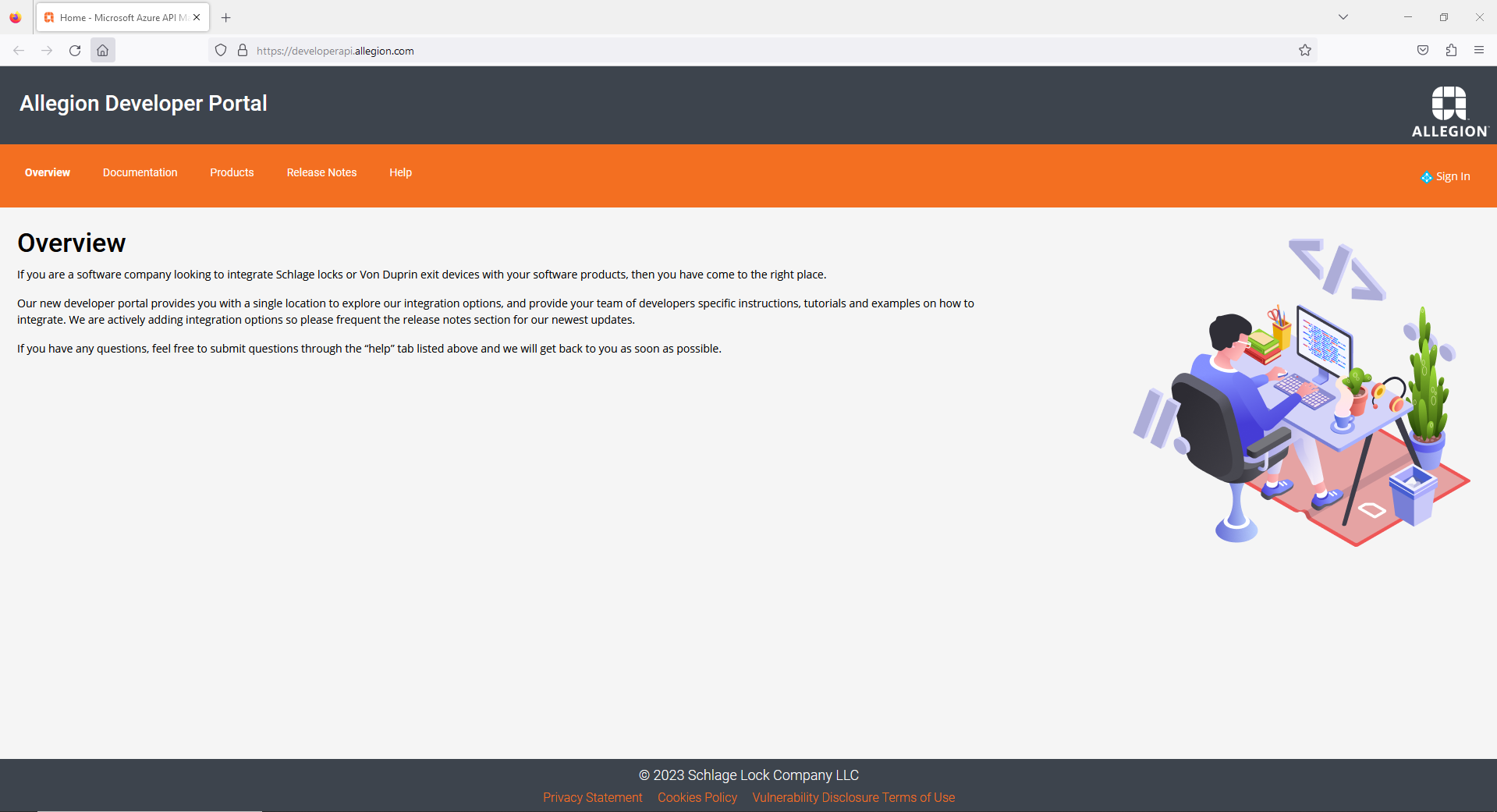
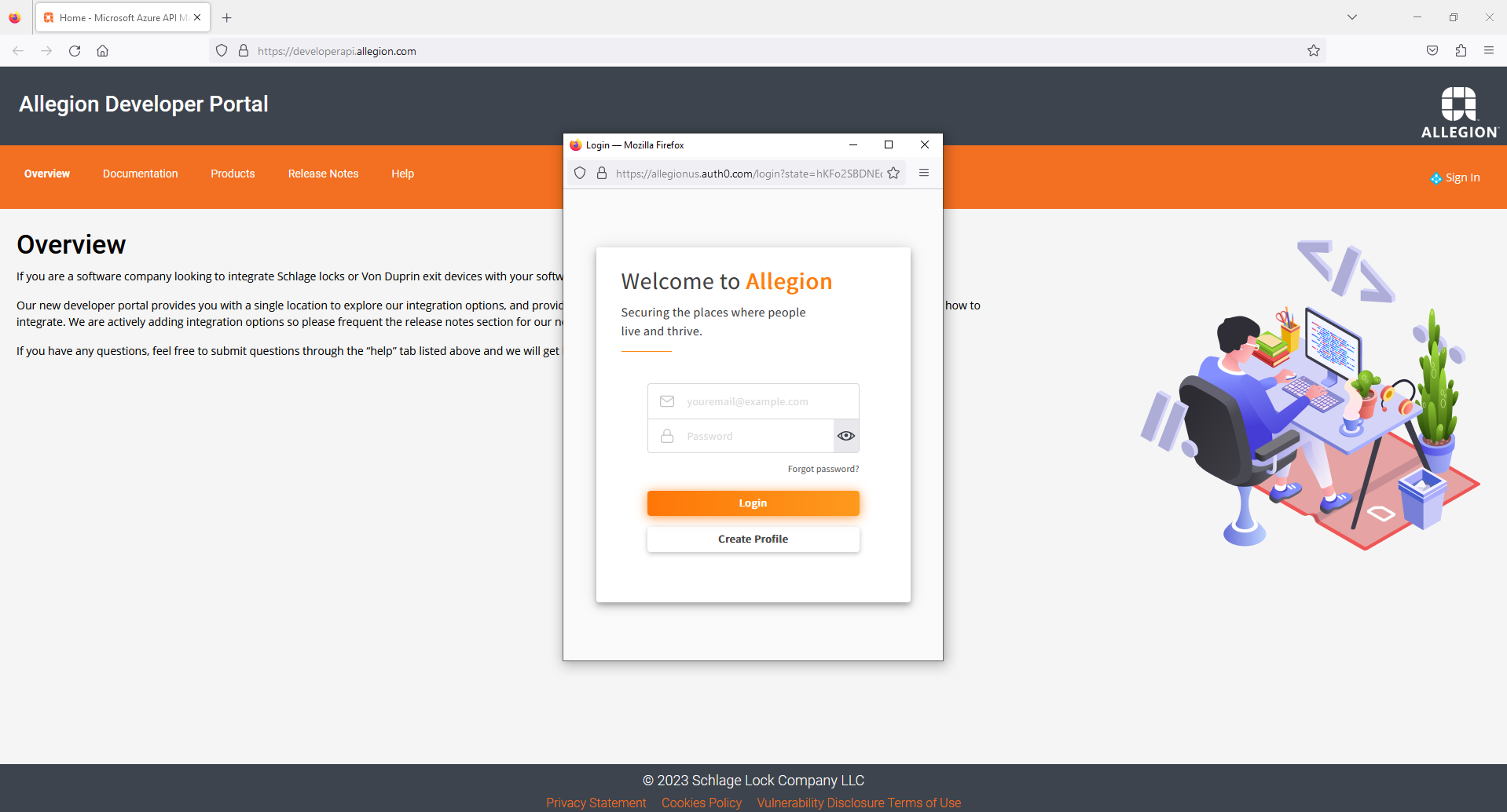
  2. Create a profile in the Allegion Developer Portal by Clicking on the "Sign In" option and then select "Create Profile". Follow the necessary steps to create your profile. Please note that email verification is required for security purposes. Once you have created your profile, complete the email verification process. Having a profile in the developer portal is necessary to gain access to the Credentialing APIs.
    • Create profiles for the required developers who are going to integrate API only solution with partner access control solution.
  3. Please email following information to Allegion Support or your dedicated Allegion integration support engineer.
    • Your ENGAGE Portal Account from Step 1
    • Email(s) for the Allegion Developer Portal from Step 2 (usually one per developer)
    • A Single Name for the Integration (company name works well) with Allegion
    • Card Format: The value should be 48X. It ensures the uniqueness of the badge ID for your card format and facility code combinations. A dedicated facility code is reserved exclusively for your integration.
  4. Allegion will respond with your unique Integration Id.
  5. Verify you have access to the Credentialing API on the Allegion Developer Portal and Subscribe to API Product. Follow these steps to create your account and request your subscription key
  6. Snow

    • Click the Sign In link in the top right corner of the landing page.

    Snow

    • Enter your account details and click Login to log in.
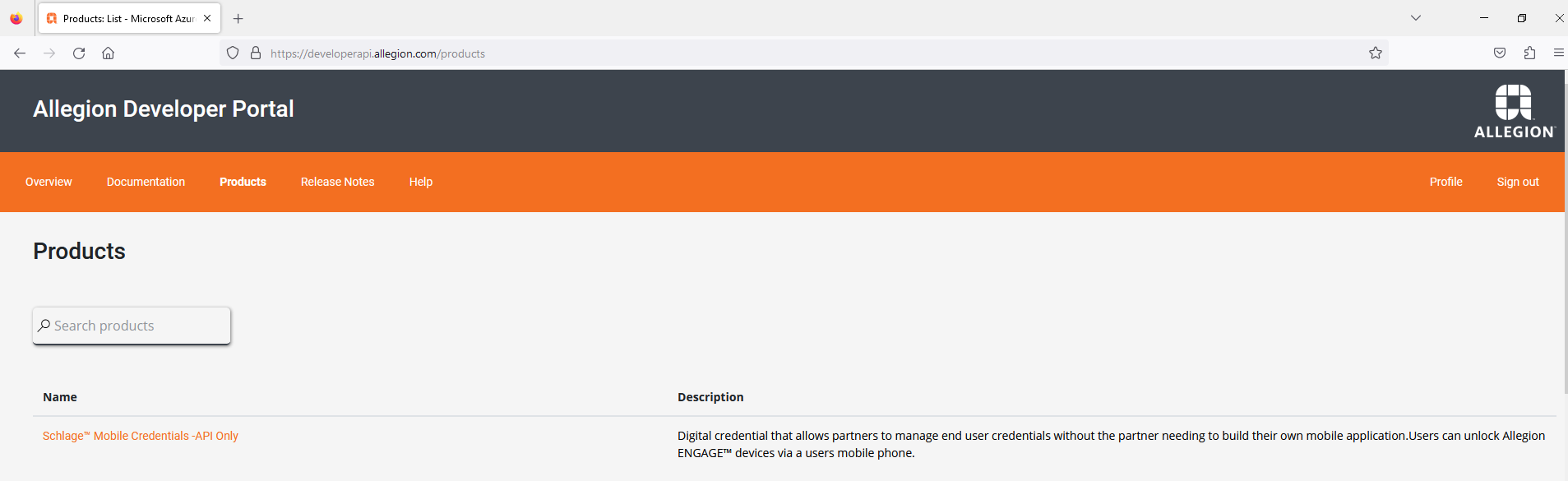
    • Click Products
    • Search ‘Schlage™ Mobile Credentials – API Only’

    Snow

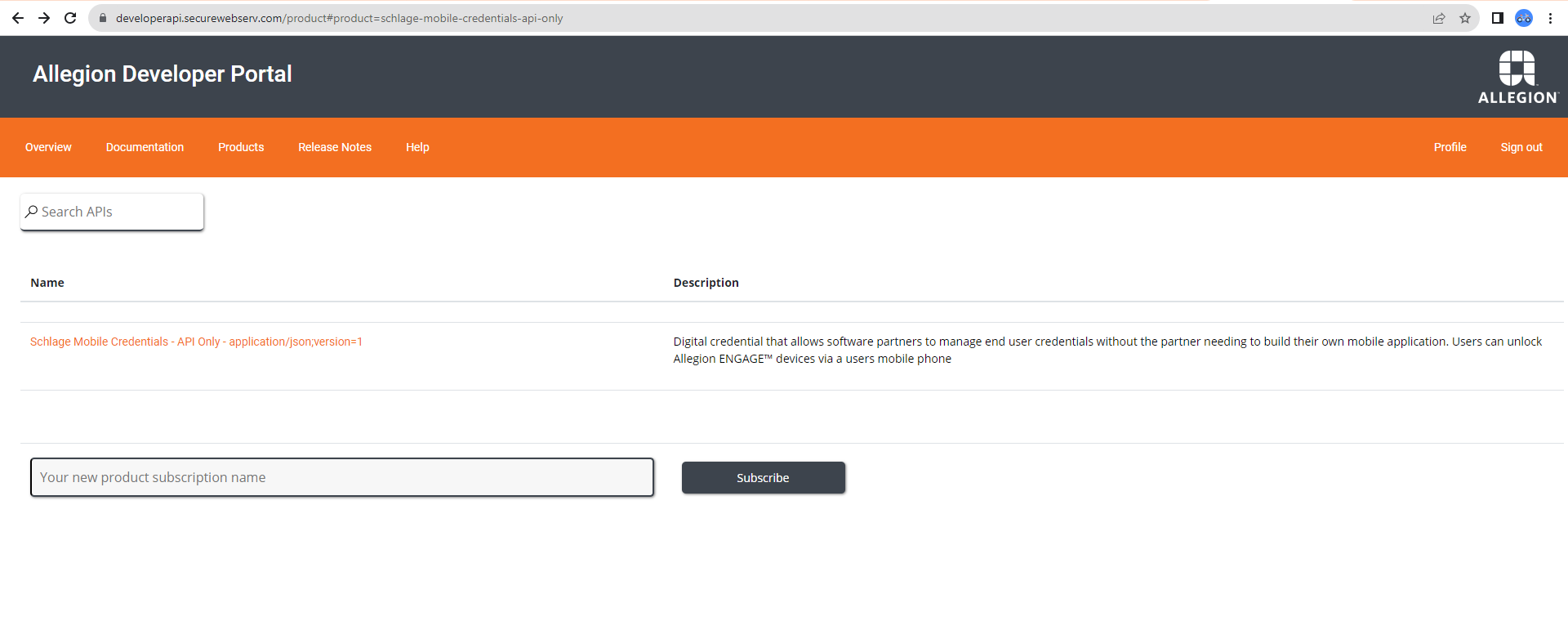
    • Select the ‘Schlage™ Mobile Credentials – API Only’ product from search results and click on ‘Subscribe’

    Snow

    • Enter the Subscription Name and Click ‘Subscribe’.Subscription is required to interact with Credentialing APIs
    • Click ‘Profile’ and you should be able to find the subscription key.This Subscription key is necessary to interact with Credentialing APIs.

    Snow

  7. Create a Site in ENGAGE. Please contact your dedicated Allegion Integration support engineer for assistance.You can also contact us by sending an email to the following address: Allegion Support

Why use the Schlage™ BLE Mobile Credentials APIs

Experience a seamless mobile access control solution with the Schlage™ BLE Mobile Credentials- API Only Solution. This solution allows you to effortlessly issue mobile Bluetooth credentials to patrons using their mobile numbers. Patrons can conveniently unlock secured spaces using the user-friendly Schlage™ Mobile Access App. Elevate your facility's security and provide a cutting-edge digital mobile credential experience

Please refer below table for supported locks and readers.

Locks and Readers Firmware Version
Schlage Control Locks All versions support BLE
Schlage MTB Readers
(MTB11, MTB15, MTBK15)
All versions support BLE
Schlage LE Locks
(LEBMS, LEBMB, LEBMD)
All versions support BLE
Schlage NDEB Locks All versions support BLE
Schlage RC Reader Controller
(RC11, RC15, RCK15)
All versions support BLE

How to use the Schlage™ BLE Mobile Credentials APIs

The API Only Solution provides No-Tour and Tour features to enhance your integration capabilities. This section will guide you through the necessary steps to effectively utilize the API Only Solution and take advantage of its features.

Prerequisite Requirements for Tour and No-tour Features

This section will outline the essential requirements and prerequisites for using the Tour and No-Tour features in API Only Solution.

  1. Create User: Partners need to create a user within their Partner Access Control System. This involves providing relevant user details and obtaining a user reference identifier. The user reference identifier serves as a unique identifier for the user within the system. Also they can use the existing user identifier if the user is already present in the system.
  2. Lock Commissioning: Partners can utilize the ENGAGE Device Commissioning SDK (EDCS) or the ENGAGE Mobile app to commission ENGAGE locks. Please reach out to your dedicated Allegion Integration support engineer for assistance with this process. If the locks are already commissioned, you can proceed to the next step and disregard this particular step.

Using Tour Feature in the API Only Solution: Step-by-Step Guide

In the Tour capability of the Schlage™ Mobile Credentials APIs, the process involves physically visiting each lock or door that requires access and manually updating their settings to reflect immediate user access changes. The site administrator or operator must tour the premises, ensuring that the necessary credentials and access levels are assigned to each lock individually. If immediate access changes are not required, locks configured to connect to your server over a WiFi network or Gateway will fetch the access changes overnight. However, if locks are not configured to connect to your access control server, touring every lock or door becomes necessary, requiring significant time and effort.

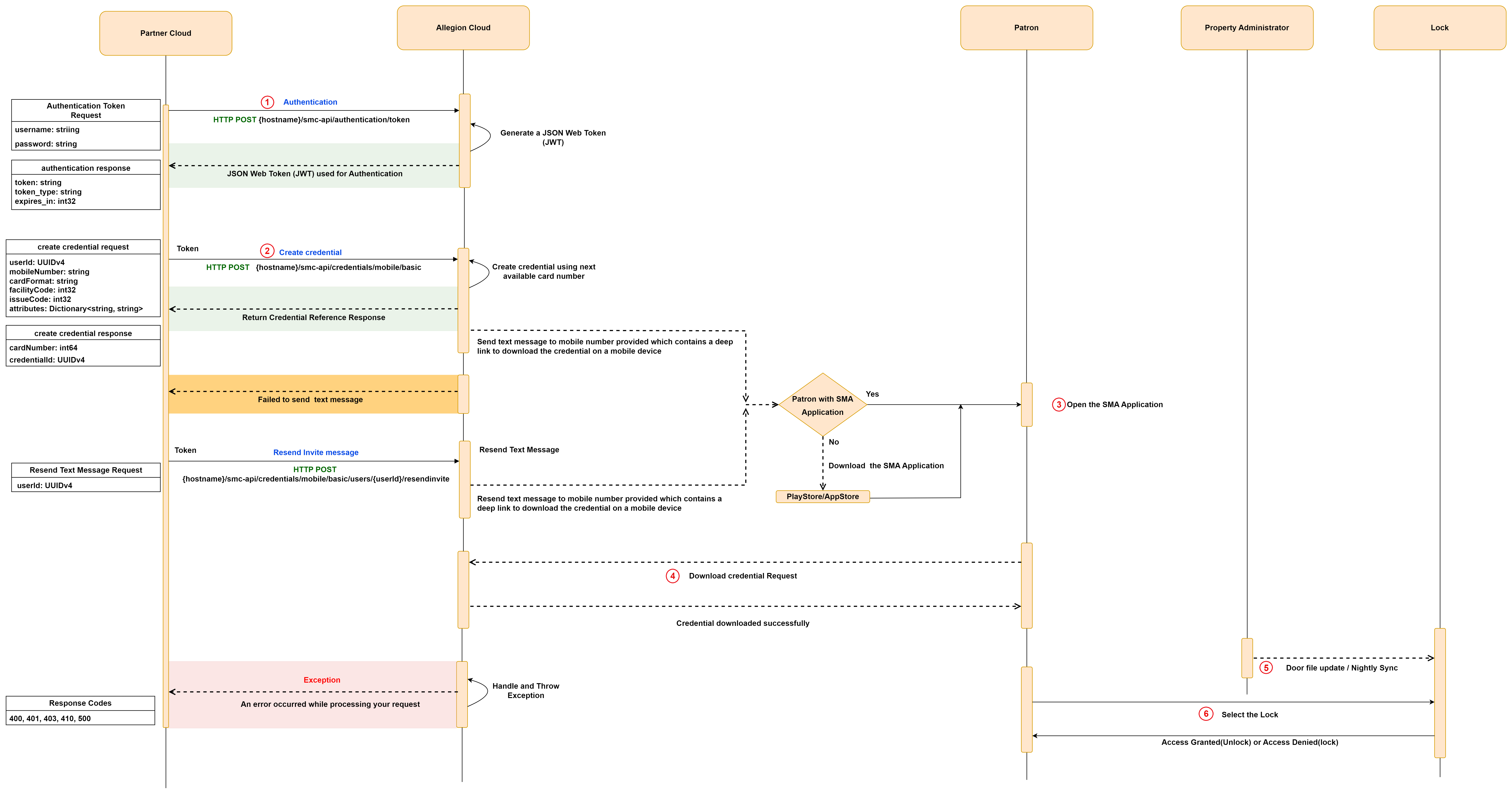
To utilize the Tour capability in the Schlage™ Mobile Credentials APIs, please follow these steps:

  1. Authentication: Begin by authenticating the token request using the "Authentication Token" endpoint. This will provide you with an access token required for all subsequent API calls. To experience this endpoint, click the Try it button. Please note that logging into the Allegion Developer Portal is required in order to try the API.
  2. Create Credential and Send Invitation: Use the authentication access token in the "Create Credential" endpoint and issue a mobile credential for patron by providing patron's mobile number, Card Format and Facility Code. A text message containing invitation is then sent to the patron's mobile number Try it
  3. If the message invite is not received or needs to be resent, you can utilize the "Resend Text Message" endpoint Try it

  4. Assign Access to Locks or Doors: Partners can assign, revoke, or modify patron access to locks or doors in the Partner Access Control System. If access is already assigned to the user, only the mobile credential needs to be created using the "Create Credential" endpoint.
  5. Download the Mobile Credential: Patrons can download the mobile credential on their mobile devices by tapping on the deep link (invitation link) received in the text message during credential creation. This deeplink will redirect them to the respective app store (Play Store or App Store) to download the "Schlage™ Mobile Access" application if they haven't already. Patrons need to accept the Terms & Conditions and select the desired lock in the app to gain access to the assigned door. Please note that patrons will not be able to access doors if they are not assigned access.
  6. Tour the Lock(s): The site administrator or operator needs to physically tour each lock whenever there is an access change for a patron. Access change refers to the addition or revocation of access to a door or lock. Alternatively, the admin can wait for the nightly sync when updates are automatically sent to locks that are set up to make nightly calls to the server.
  7. Access Locks with Mobile Credential: After downloading the credential, patrons can open the Schlage Mobile Access App, which will display all the locks within Bluetooth Low Energy (BLE) range. Users can securely access the premises by simply tapping on the lock or door they have access to, as displayed on the app, when they are within Bluetooth range.
Zoom Pan Image

Using No-Tour Feature in the API Only Solution: Step-by-Step Guide

No-Tour Capability in Schlage™ Mobile Credentials APIs simplifies Access Management. The No-Tour capability of the Schlage™ Mobile Credentials APIs revolutionizes access management by eliminating the need for physical lock tours. With this capability, administrators can remotely assign or revoke access for specific doors within the facility without the requirement for manual intervention. This is achieved through the use of digital access commands and updates that are seamlessly transmitted directly to the locks when a patron presents their credential using the Schlage Mobile Access mobile app over Bluetooth. By leveraging this capability, the administrative overhead associated with physical tours is significantly reduced.

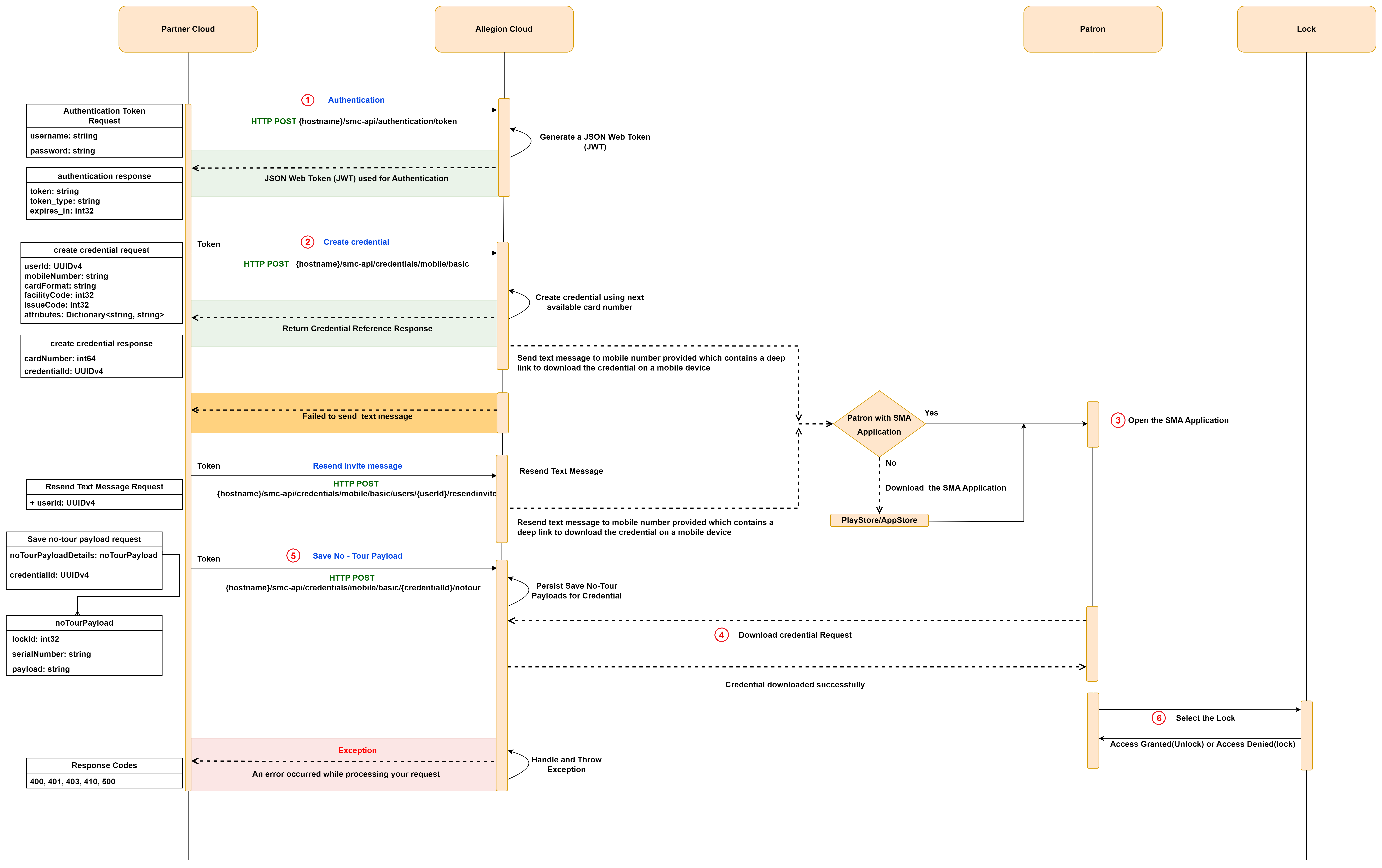
To utilize the No-Tour capability in the Schlage™ Mobile Credentials APIs, please follow these steps:

  1. Authentication: Begin by authenticating the token request using the "Authentication Token" endpoint. This will provide you with an access token required for all subsequent API calls.To experience this endpoint, click the Try it button. Please note that logging into the Allegion Developer Portal is required in order to try the API.
  2. Create Credential and Send Invitation: Using the authentication access token, issue a mobile credential for the patron through the "Create Credential" endpoint. Provide the patron's mobile number, Card Format, and Facility Code. A text message containing the invitation will be sent to the patron's mobile number Try it

    If the invitation message is not received or needs to be resent, you can utilize the "Resend Text Message" endpoint Try it

  3. Assign Access to Doors and Associate No-Tour Payloads with Credential: Partners can assign, revoke, or modify patron access to locks or doors within the Partner Access Control System. If access is already assigned to the user, only the mobile credential needs to be created using the "Create Credential" endpoint. After creating the credential and assigning access to doors, you can associate No-Tour payloads with the credential through the "Save No-tour Payload" endpoint. This API requires a No-Tour payload, which consists of access commands like adding access, revoking access, and modifying access. Generating the payload is similar to how payloads are generated for Plastic credentials through MT20W Try it. If you require assistance with generating the payload, please reach out to your dedicated Allegion Integration support engineer.
  4. Download the Mobile Credential: Patrons can download the mobile credential on their mobile devices by tapping on the deep link (invitation link) received in the text message during credential creation. This deep link will redirect them to the respective app store (Play Store or App Store) to download the "Schlage™ Mobile Access" application if they haven't already. Patrons need to accept the Terms & Conditions and select the desired lock in the app to gain access to the assigned door. Please note that patrons will not be able to access doors if they are not assigned access.
  5. Access Locks with Mobile Credential: Once the credential is downloaded, patrons can open the Schlage Mobile Access App, which will display all the locks within Bluetooth Low Energy (BLE) range. Users can securely access the premises by simply tapping on the lock or door they have access to, as displayed on the app, when they are within Bluetooth range.
  6. Modify Access to Doors: If any modifications are made to the access, send the updated No-Tour payloads through the "Save No-Tour Payload" endpoint Try it
  7. Access Doors with Mobile Credential: Patrons can open the Schlage Mobile Access App, where the app will pull updated access information from the cloud. The app will display all the locks within Bluetooth Low Energy (BLE) range. Users can securely access the premises by simply tapping on the lock or door they have access to, as displayed on the app, when they are within Bluetooth range. If access is revoked, patrons will not be able to access the door. If patrons have access, the app will grant access and allow them to enter through the door.
Zoom Pan Image

Schlage™ BLE Mobile Credentials APIs: Overview, Error Handling and Resolutions

This section offers overview of each API within the API-Only solution. It provides detailed insights into the purpose, functionality and usage of each API.

In addition to the API overview, this section covers various error use cases that may arise during API interactions. It elaborates on the specific error scenarios, providing clarity on the status codes returned by the APIs in these cases. By understanding these error situations, developers can effectively troubleshoot and handle potential issues that may occur during API integration.

To ensure a seamless experience, this section also provides resolutions for each error scenario. These resolutions offer guidance on resolving the encountered issues, enabling developers to quickly address any challenges and optimize the integration process.

1. Authentication Token

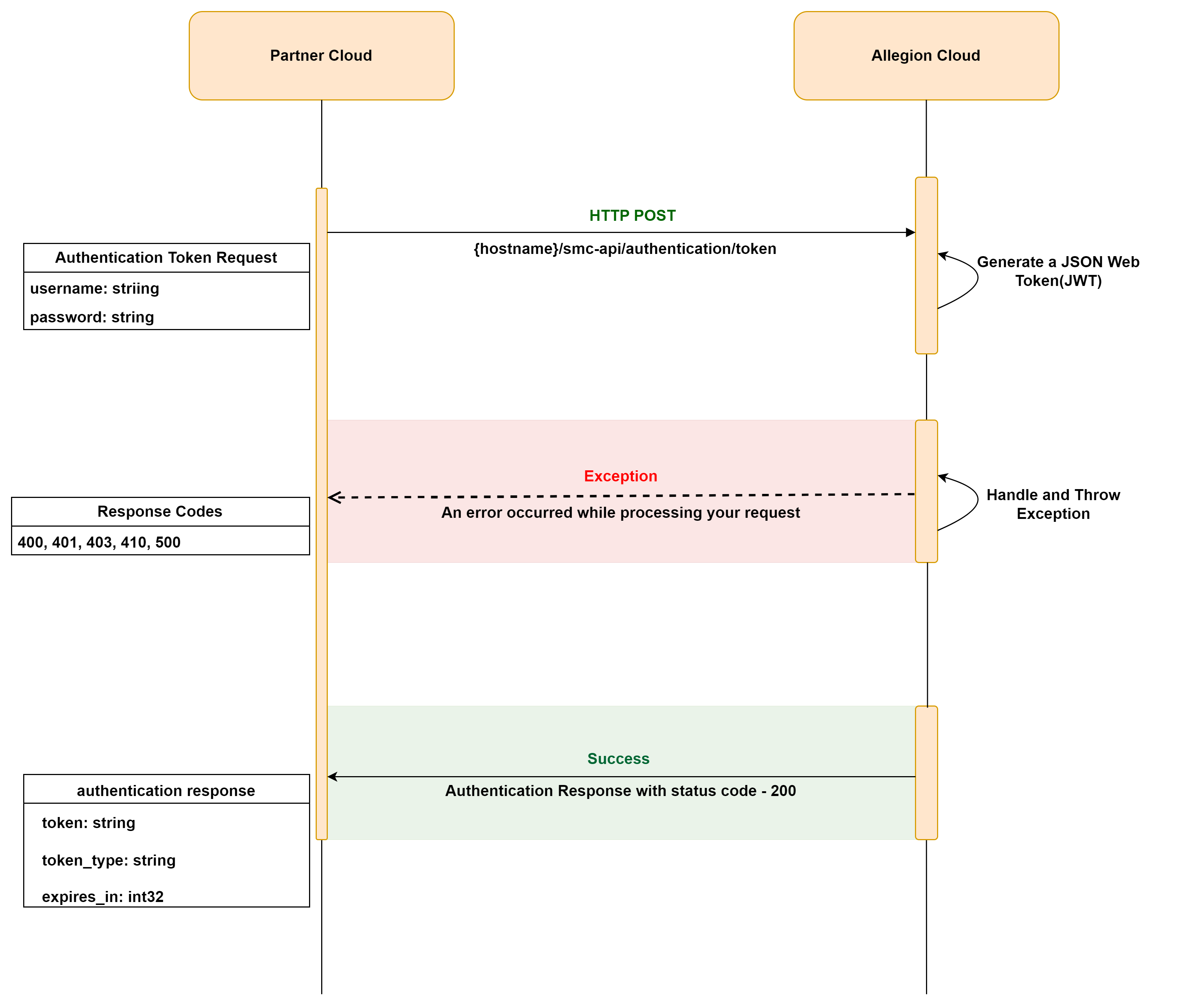
Authentication Token API generates a bearer token by using your ENGAGE™ username and password that was created in ENGAGE portal as part of onboarding process. This token is used to authenticate access to Credentialing APIs and is valid for 10 hours (36000 seconds). After 10 hours, the token expires and cannot be used for API calls. If the token has expired, you need to use the Authentication API to get a new bearer token.

It is recommended to use the same token for 10 hours to avoid rate limiting and temporary account blocking. The rate restriction is 100 requests per 15 minutes. Exceeding this limit will result in a warning, a 429 (Too Many Attempts) HTTP response and possible temporary account blocking.

To experience this endpoint, click the Try it button. Please note that logging into the developer portal is required in order to try the API.

Zoom Pan Image

Authentication related Errors and Resolution:

This section provides a comprehensive overview of common error messages that may be encountered while utilizing the Authentication Token API. Each error message is accompanied by a detailed explanation of its meaning and potential causes.By understanding these error messages, developers can effectively troubleshoot issues that may arise during API integration and address them.

This section also offers comprehensive resolutions for each error message. These resolutions provide guidance and recommended actions to resolve the encountered issues. By following these resolutions, developers can overcome challenges.


No. Scenario HTTP status code Error Message Resolution
1. When null or empty value is provided for username 400 (Bad Request) The User Name must be provided. Please provide email id of your integration for "User Name" parameter in the API request. If you need further assistance, please contact your assigned Allegion Support Engineer.
2. When an invalid email format is provided for username 400 (Bad Request) Invalid User Name format. Please provide email id of your integration for "User Name" parameter in the API request. If you need further assistance, please contact your assigned Allegion Support Engineer.
3. When null or empty password is provided 400 (Bad Request) The Password must be provided. Please provide correct password of your integration for "Password" parameter in the API request. If you need further assistance, please contact your assigned Allegion Support Engineer.
4. When the provided email id has been deleted from the system 403 (Forbidden) The account with the provided User Name is not active. Please provide email id and password of your integration with Allegion in the API request. If you need further assistance, please contact your assigned Allegion Support Engineer.
5. When an email is provided, but the associated account is not verified 403 (Forbidden) The account has not been verified. Please contact support. The account has not been verified. Please contact your assigned Allegion integration engineer for assistance.
6. When an incorrect password is provided 403 (Forbidden) The User Name or Password is incorrect. The User Name or Password is not correct. Please try again with a valid User Name and Password.
7. When the provided username is not found in the ENGAGE 404 (Not Found) The account with the provided User Name was not found. The requested User Name does not exist. Please provide email id of your integration for "User Name" parameter in the API request, contact your assigned Allegion support engineer for assistance.
8. When there are excessive login attempts with the same username 429 (Too Many Attempts) We have detected too many logins with the same User Name. Please try again later. The user has attempted to log in to their account multiple times within a short interval, indicating possible malicious intent. The user should hold off attempting to log in for some time.
9. When login is attempted after the rate limit x-ratelimit-remaining header value is 0. 429 (Too Many Attempts) We have detected too many logins with the same User Name. Please be aware that further attempts to login may result in your account being blocked. The user has attempted to log in to their account multiple times within a short interval, indicating possible malicious intent. User is no longer allowed to attempt log in. User may try log in after about 15 minutes.
10. When too many attempts login after the rate limit is 0, x-ratelimit-remaining is set to 0 429 (Too Many Attempts) Your account has been temporarily blocked due to multiple login attempts. Please contact your site administrator for more information. The user account has been blocked due to user attempting to log in to their account multiple times within a short interval, indicating possible malicious intent. User must contact their assigned Allegion support engineer.
11. Generic error on server 500 (Internal Server Error) An error has occurred. Please try again later or contact support if the issue persists. Our team is currently investigating the issue. Please try again later or contact your assigned Allegion support engineer for assistance.
12. When try to login when auth0 service is down 503 (Service Unavailable) The service is temporarily unavailable. Please try again later or contact support if the issue persists. The service is temporarily unavailable. Please try again later or contact your assigned Allegion support engineer if the issue persists.

2. Create Credential

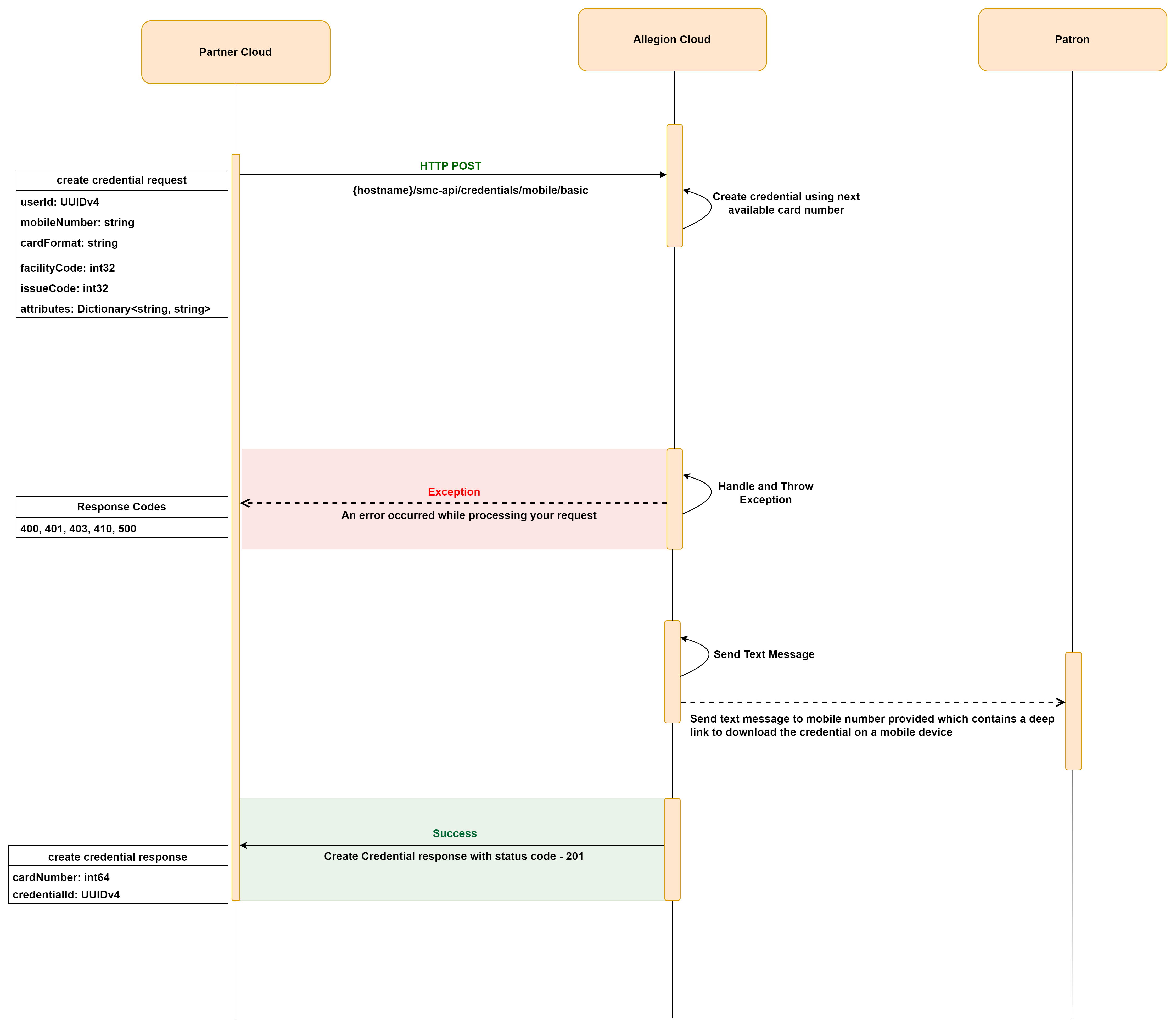
The Create Credential API allows you to create a new credential for a user and send a text message to their mobile number with a deep link to download the credential to their mobile device. To create a mobile credential, you need to provide the user's mobile number, card format, and facility code.

  1. Mobile Number: The user's mobile number in E.164 format. A text message containing a deep link to download the credential will be sent to this number.
  2. Card Format: There are two types of card formats: restricted and open.
    • Restricted Card Format: The restricted card format, 48X, ensures the uniqueness of the badge ID for your card format and facility code combination. A dedicated facility code is reserved exclusively for you and will not be used by any other software partners
    • Open Card Format: The open card formats (26A, 34S, 35X, 37H, and 37X) do not ensure the uniqueness of the badge ID for your card format and facility code combination
  3. Facility Code: The facility code corresponds to a specific card format. The range of facility codes supported varies for each card format. Please refer to the table below for the supported facility codes for each card format.

Supported Facility Code Range for Different Card Formats:

No. Card Format Supported Facility Code Range
1. 26A 0 - 255
2. 34S 0 - 4095
3. 35X 0 - 4095
4. 37H N/A
5. 37X 0 - 65535
6. 48X Please contact your dedicated Allegion integration support engineer for configuring the Facility Code for your integration.

  1. Please note that only one mobile credential is allowed per patron and the same mobile number cannot be used to create multiple credentials.

To experience this endpoint, click the Try it button. Please note that logging into the developer portal is required in order to try the API.

Zoom Pan Image

Create credential related Errors and Resolution:

This section provides a comprehensive overview of common error messages that may be encountered while utilizing the Create Credential API. Each error message is accompanied by a detailed explanation of its meaning and potential causes.By understanding these error messages, developers can effectively troubleshoot issues that may arise during API integration and address them.

This section also offers comprehensive resolutions for each error message. These resolutions provide guidance and recommended actions to resolve the encountered issues. By following these resolutions, developers can overcome challenges.


No. Scenario HTTP status code Error Message Resolution
1. When JWT Token is invalid, expired or incorrect. 400 (Bad request) / 401 (Unauthorized) Invalid authentication token. The authentication token provided in the header is either expired or incorrect.
2. When UserId is empty Guid 400 (Bad Request) The User Id cannot be empty UUIDv4. Please use a non-zero UUIDv4. The "User Id" is a required field and it should be a valid non-empty UUIDv4 value.
3. When Card Format is not Provided, or provided without double quotes, or is provided null or empty 400 (Bad Request) The Card Format must be provided. The "Card Format" is a required field. Supported values are 26A,34S, 35X,37H,37X and 48X.
4. When Card Format is Invalid. 400 (Bad Request) The Card Format is invalid. The "Card Format" is not valid. Supported values are 26A,34S, 35X,37H,37X and 48X.
5. When Invalid or non-zero Issue code is provided for Open Card Format 400 (Bad Request) The Issue Code is invalid for Card Format - 26A. Supported Issue Code is 0 for 26A. The “Issue Code” is not valid. Supported value for 48X card format is 20 and for other card formats supported value is 0.
6. When Issue Code which is not Mapped to Restricted Card Format is provided. 400 (Bad Request) You do not have permission to create mobile credential using restricted Card Format. Please contact support Your role does not have the necessary permissions to perform this operation. For further information, please contact your site administrator or Allegion integration engineer (203).
7. When Issue Code is provided invalid or empty. 400 (Bad Request) The Issue Code must be provided in uint format. The “Issue Code” is not valid. Supported value for 48X card format is 20 and for other card formats supported value is 0
8. When Issue Code not provided or is passed Null or Incorrect for Restricted Card Format. 400 (Bad Request) The Issue code should be between 1 and 63. The “Issue Code” is not valid. Supported value for 48X card format is 20 and for other card formats supported value is 0
9. When Facility Code which is not mapped for Restricted Card Format in Allegion is Provided but the value is within the range of Restricted card format. 400 (Bad Request) The Facility Code is invalid for the restricted Card Format. Please contact support to get the valid Facility Code. If you are using a '48X', it requires a specific configuration for your integration. Please reach out to Allegion integration engineer for assistance with the configuration process.
10. When Facility Code is not provided, or is provided invalid, null or empty. 400 (Bad Request) The Facility Code must be provided in uint format. The "Facility Code" is a required field. The facility code ranges vary for each card format, as follows:
- For '26A', the supported facility code range is from 0 to 255.
- For '34S', the supported facility code range is from 0 to 4095.
- For '35X', the supported facility code range is from 0 to 4095.
- For '37X', the supported facility code range is from 0 to 65535.
Please note that facility code ranges are not applicable for '37H'.
If you are using a '48X', it requires a specific configuration for your integration. Please reach out to Allegion integration engineer for assistance with the configuration process.
11. When Mobile Number is not provided, or is provided invalid. 400 (Bad Request) The Mobile Number must be provided in E.164 format. The "Mobile Number" is a required field, and it should be in E.164 format. Please provide a valid Mobile Number in E.164 format.
12. When UserId is not provided or is provided invalid. 400 (Bad Request) The User Id must be provided in UUIDv4 format. The "User Id" is a required field, and it should be a valid GUID/UUIDv4. Please provide a valid User Id in UUIDv4 format.
13. When Empty Json is provided for Body. 400 (Bad Request) The Mobile Number must be provided in E.164 format. The User Id must be provided in UUIDv4 format. The Card Format must be provided. Please provide a valid Mobile Number in E.164 format, a valid User Id in UUIDv4 format, and the Card Format. Supported Card Formats are 26A, 34S, 35X, 37H, 37X, and 48X.
14. When no Curly braces are provided in Body. 400 (Bad Request) Invalid Create Credential Request. Please provide a valid JSON object in the request body enclosed in curly braces {}. Please provide a valid JSON object in the request body enclosed in curly braces {}.
15. When the mobile number is not passed in valid E.164 format. 400 (Bad Request) The Mobile Number must be provided in E.164 format. The "Mobile Number" is a required field, and it should be in E.164 format. Supported Formats: +1 <10 to 14 digits> (e.g., +11234567890)
16. When attributes are non-JSON value. 400 (Bad Request) Invalid Attributes. Please provide a valid JSON object in Attributes enclosed in curly braces {}. Note: Being an optional field, if attributes are not passed, or is passed as null or empty json {}, creates credential.
17. When Attribute’s key is/are unknown. 400 (Bad Request) The '<key>' is not a supported attribute. E.g.: The 'key1' is not a supported attribute., The 'key2' is not a supported attribute. "Attributes" is an optional field, and supported attributes are "SiteID" and "SiteName". SiteId accepts your ENGAGE site Id and SiteName accepts your ENGAGE site name.
18. When Attribute’s key is/are valid, but value is null. 400 (Bad Request) The '<key>' attribute cannot be null. E.g.: The 'SiteiD' attribute cannot be null., The 'SiteName' attribute cannot be null. "Attributes" is an optional field, and supported attributes are "SiteID" and "SiteName". SiteId accepts your ENGAGE site Id and SiteName accepts your ENGAGE site name.
19. When Attribute’s key is/are valid, but value is null. 400 (Bad Request) The '<key>' attribute cannot be null. E.g.: The 'SiteiD' attribute cannot be null., The 'SiteName' attribute cannot be null. "Attributes" is an optional field, and supported attributes are "SiteID" and "SiteName". SiteId accepts your ENGAGE site Id and SiteName accepts your ENGAGE site name.
20. When SiteId or SiteName length is greater than 2000. 400 (Bad Request) The '<key>' attribute value exceeds the maximum character limit of 2000. E.g.: The 'SiteId' attribute value exceeds the maximum character limit of 2000. The maximum number of characters allowed for fields SiteId and SiteName is 2000. Please ensure that the value you provide for these fields does not exceed this limit.
21. When the role is non-administrator (manager, operator). 403 (Forbidden) You do not have permission to access the requested resource. Please contact your site administrator for more information (203). Your role does not have the necessary permissions to perform this operation. For further information, please contact your site administrator or Allegion integration engineer (203).
22. When the onboarding is not completed. 403 (Forbidden) Integration is not complete for your account. Contact your site administrator for more information. Your account's integration with Allegion is incomplete. For further information, please contact your site administrator or Allegion integration engineer.
23. When UserId is already Present. 409 (Conflict) The User is already associated with a Mobile Credential. Please check the User Id and try again. The "User Id" provided is already associated with a credential, please provide a new UUIDv4 value for the User Id.
24. When Mobile Number is already Present. 409 (Conflict) The Mobile Number is already associated with a User. Please check the Mobile Number and try again. The "Mobile Number" provided is already associated with a credential, please provide a new mobile number value in E.164 format.
25. When Maximum Card Number is reached for a particular Facility Code. 417 (Expectation Failed) The maximum Card Number limit has been reached for this Facility Code. Please use a different Facility Code. Maximum card number limit has been reached for this Facility Code. The facility code ranges vary for each card format, as follows:
- For '26A', the supported facility code range is from 0 to 255.
- For '34S', the supported facility code range is from 0 to 4095.
- For '35X', the supported facility code range is from 0 to 4095.
- For '37X', the supported facility code range is from 0 to 65535.
Please note that facility code ranges are not applicable for '37H'.
For '48X', use the specific facility code configured for your integration.
26. If any other Exception occurs. 500 (Internal Server Error) Failed to create mobile credential. Please try again later or contact support if the issue persists. Reason: The system encountered an internal problem while performing a task and was unable to complete it. Please try the action again after some time, and if the issue persists, please contact Allegion integration engineer for further assistance.
27. If you are providing invalid Facility code for open or restricted card format which is outside the range of that card format. 400 (Bad Request) Facility code should be between {minvalue} and {maxvalue}. The facility code ranges vary for each card format, as follows:
- For '26A', the supported facility code range is from 0 to 255.
- For '34S', the supported facility code range is from 0 to 4095.
- For '35X', the supported facility code range is from 0 to 4095.
- For '37X', the supported facility code range is from 0 to 65535.
Please note that facility code ranges are not applicable for '37H'.
If you are using a '48X', it requires a specific configuration for your integration. Please reach out to Allegion integration engineer for assistance with the configuration process.

3. Resend Text Message

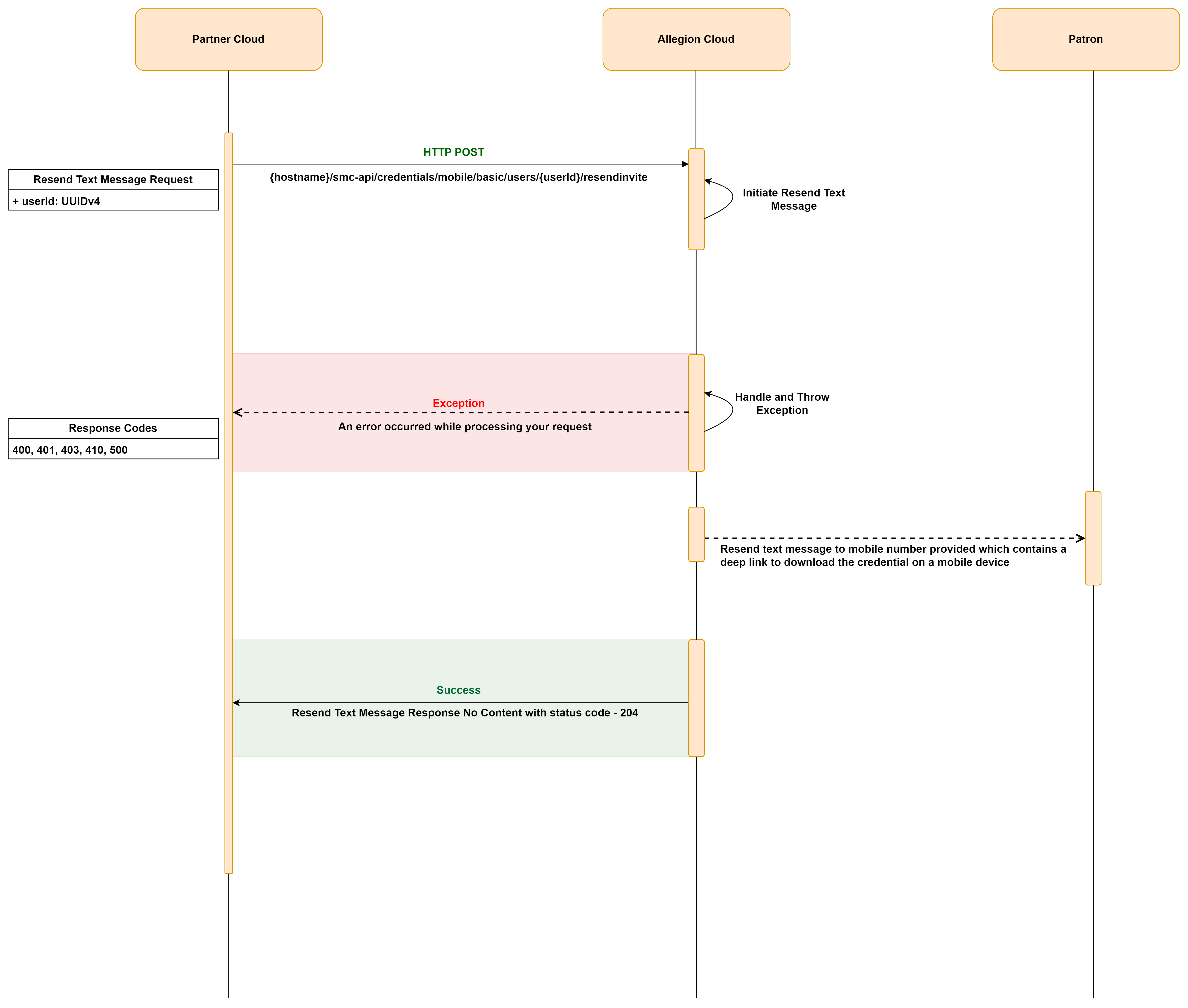
The Resend Text Message API resends the deep link for downloading the credential to the patron's mobile number in case the messaging server was unavailable when credential was created, or patron removes original text message accidentally. A fresh deep link will be generated and sent to the patron; this ensures that the patron can still download the credential on their phone.

To experience this endpoint, click the Try it button. Please note that logging into the developer portal is required in order to try the API.

Zoom Pan Image

Resend Text Message related Errors and Resolution:

This section provides a comprehensive overview of common error messages that may be encountered while utilizing the Resend text Message API. Each error message is accompanied by a detailed explanation of its meaning and potential causes.By understanding these error messages, developers can effectively troubleshoot issues that may arise during API integration and address them.

This section also offers comprehensive resolutions for each error message. These resolutions provide guidance and recommended actions to resolve the encountered issues. By following these resolutions, developers can overcome challenges.


No. Scenario HTTP Status Code Error Message Resolution
1. When Token is invalid, expired, or incorrect 400 (Bad Request) / 401 (Unauthorized) Invalid authentication token Please ensure that the authentication token provided is a valid JWT format
2. When empty GUID is passed as user Id 400 (Bad Request) The User Id cannot be empty UUIDv4. Please use a non-zero UUIDv4 The value provided (00000000-0000-0000-0000-000000000000) is an empty UUIDv4, please use a non-zero UUIDv4. Example: 29DDBB87-D2F7-40F1-92DA-D63DDEC185DF
3. When mobile credential was already downloaded by the user 400 (Bad Request) Cannot resend text message as the mobile credential was downloaded by the user. Add credential again to send a new text message. The user already has a downloaded mobile credential. Please delete the existing credential and create a new one.
4. When credential not found in CMS database 400 (Bad Request) The requested credential was not found The credential you have requested is either deleted or not currently available in the system
5. When the role is non-administrator (manager, operator) 403 (Forbidden) You do not have permission to access the requested resource. Please contact your site administrator for more information (203) Your role does not have the necessary permissions to perform this operation. For further information, please contact your site administrator or Allegion integration engineer (203)
6. When the onboarding is not completed. 403 (Forbidden) Integration is not complete for your account. Contact your site administrator for more information Your account's integration with Allegion is incomplete. For further information, please contact your site administrator or Allegion integration engineer
7. When the user id is not present in the system 404 (Not Found) The requested user was not found The user you have requested is either deleted or not currently available in the system
8. Generic error on server 500 (Internal Server Error) An error has occurred. Please try again later or contact support if the issue persists The system encountered an internal problem while performing a task and was unable to complete it. Please try the action again after some time, and if the issue persists, please contact Allegion integration engineer for further assistance

4. Save No Tour Payloads for a mobile credential

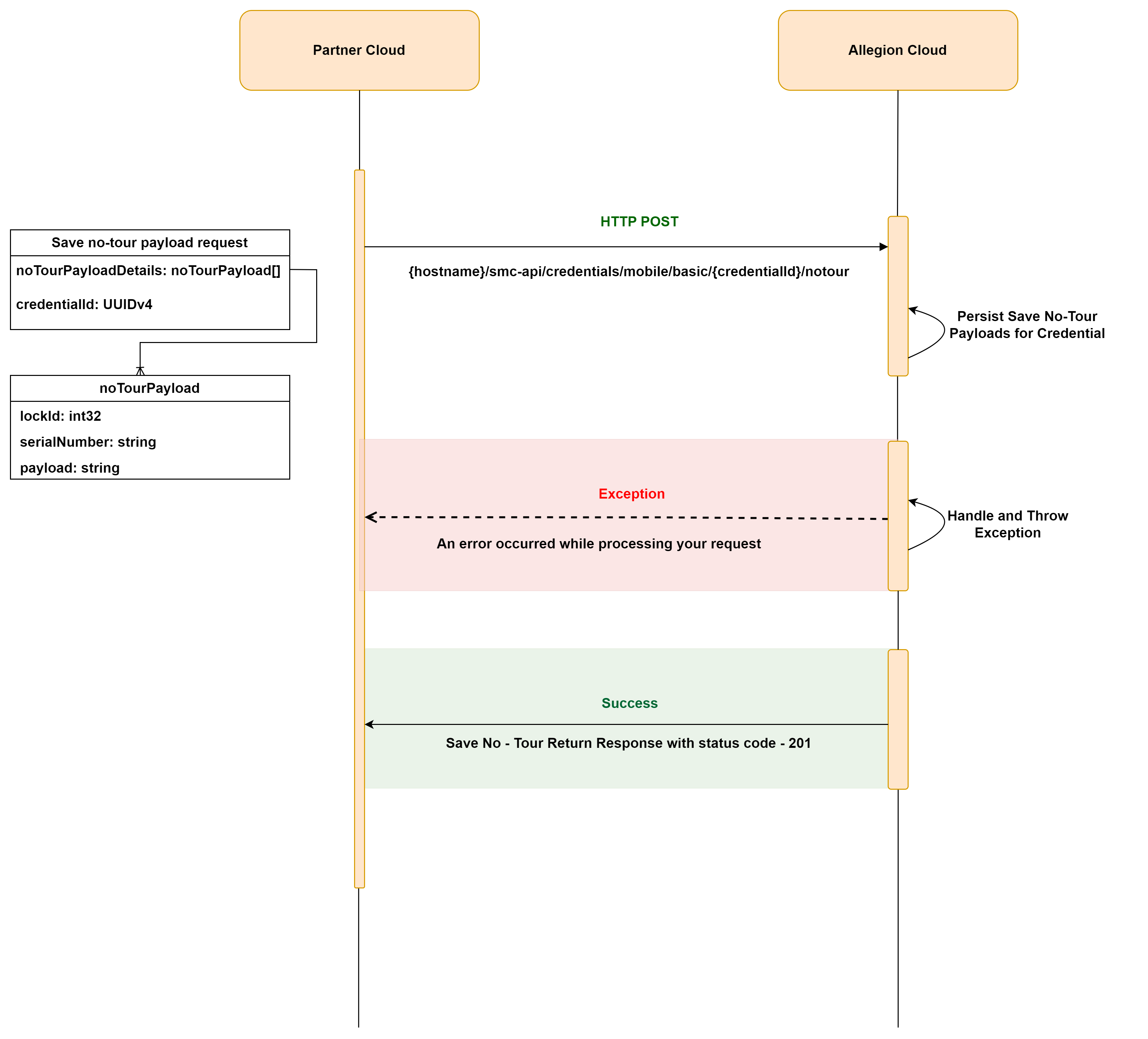
This API associates the No-Tour payloads for the credential.

With the addition of No-Tour capability for mobile credentials, the property administrator is no longer required to tour the door for access updates or use an enrolment reader to program the mobile credentials. The access updates (commands/No Tour Payloads) can be retrieved on the patron’s phone and presented to the lock.

Patrons with mobile credential and Schlage™ Mobile App that utilize No-Tour functionality will no longer need to use physical credentials to gain access to their assigned doors, however software partners may choose to continue to use plastic credentials as-is.

For a patron to receive a mobile no-tour command, they must first have a mobile credential assigned to them. The No-Tour payload can then be created against the Credential ID generated from creating the patron’s mobile credential.

For information on how to create the No-Tour payloads, please refer the documentation (Link for documentation) for No-Tour integration for plastic credentials or contact to your Allegion Integration Engineer.

You can create No-Tour Payloads against a credential for one or multiple devices/locks.

For example, Alex is a resident of Unit 101 in XYZ's multi-family residence. Alex needs access to the facility's main entrance (Door 1) and Unit 101 (Door 2). The facility administrator assigns Alex’s mobile credential access for Door 1 and Door 2.

In the above example, you can create No-Tour Payloads for Door 1 and Door 2 for Alex’s mobile credentials and save to Allegion Cloud. You cannot associate the No-Tour Payload of another resident of Unit 101 or another user of the facility's main entrance to Alex’s mobile credential.

To experience this endpoint, click the Try it button. Please note that logging into the developer portal is required in order to try the API.

Zoom Pan Image

Save No Tour Payloads related Errors and Resolution:

This section provides a comprehensive overview of common error messages that may be encountered while utilizing the Save No-Tour Payloads for CredentialId API. Each error message is accompanied by a detailed explanation of its meaning and potential causes.By understanding these error messages, developers can effectively troubleshoot issues that may arise during API integration and address them.

This section also offers comprehensive resolutions for each error message. These resolutions provide guidance and recommended actions to resolve the encountered issues. By following these resolutions, developers can overcome challenges.


No. Scenario HTTP status code Error Message Resolution
1. When “credentialId” is empty UUIDv4 400 (Bad Request) The Credential Id cannot be empty UUIDv4. Please use a non-zero UUIDv4. The value provided (00000000-0000-0000-0000-000000000000) is an empty UUIDv4, please use a non-zero UUIDv4. Example: 29DDBB87-D2F7-40F1-92DA-D63DDEC185DF
2. When no request body passed, or invalid JSON 400 (Bad Request) Invalid Save No-Tour Payload Request. Please provide a valid JSON object in request body enclosed in curly braces {}. The request should be a valid JSON with the required fields ("noTourPayloadDetails") present in the payload.
3. When empty JSON passed:
{

}
              

Or when “noTourPayloadDetails” is null: 
{
  "noTourPayloadDetails": Null
}
              

Or when “noTourPayloadDetails” is not a valid list:
{
  "noTourPayloadDetails": “asd”
}
              

Or when “noTourPayloadDetails” is empty list: 
{
  "noTourPayloadDetails": []                
}
              

Or when “noTourPayloadDetails” contains invalid elements:
{
  "noTourPayloadDetails": [1,2,3]
}
              
400 Bad Request The 'NoTourPayloadDetails' parameter must be provided as a list of credential payload that contains access commands. Please ensure that the 'NoTourPayloadDetails' parameter is provided as a list of credential payloads where each payload has "lockId", "serialNumber" and "noTourPayload".
4. When “lockId” is null/empty/white space 400 (Bad Request) The Lock Id must be provided. The "Lock Id" is a required field and it must be within the acceptable range of 1 to 65535.
5. When “lockId” not in range 400 (Bad Request) The Lock Id value must be between 1 and 65535. Ensure that the Lock Id value you provide is within the acceptable range of 1 to 65535.
6. When “serialNumber” is null/empty/white space 400 (Bad Request) The Serial Number must be provided. The "Serial Number" is a required field and it must be the unique serial number of the lock within your site or facility.
7. When “noTourPayload” is null/empty/white space 400 (Bad Request) The No-Tour Payload must be provided. The "No Tour Payload Details" is a required field and it must be a list of credential payloads where each payload has "lockId", "serialNumber" and "noTourPayload".
8. When “noTourPayload” is not a hex-encoded string 400 (Bad Request) The No-Tour Payload must be a hex-encoded string. The "No Tour Payload" must be a hexadecimal-encoded string. Example: 53616d706c652068657820737472696e67
9. When “noTourPayload” length is not equal to 96 400 (Bad Request) The No-Tour Payload must be 96 characters in length. The "No Tour Payload" must be 96 characters long in length.
10. When same device has different “lockid” combination 400 (Bad Request) The request is invalid. Multiple Lock Ids for the same device are not allowed. The request is not valid due to multiple lock ids assigned to the same device. Please ensure that each device has a unique Lock Id.
11. When multiple records with same device and same “lockid” combination 400 (Bad Request) The request is invalid. Duplicate device details are not allowed. The request is not valid due to duplicate records for the same device. Please ensure that there are no duplicate records for each device and try again.
12. When Token is invalid. 400 (Bad Request) Invalid authentication token. Please ensure that the authentication token included in the header is in a valid JWT format.
13. When Token is expired or incorrect. 401 (Unauthorized) Invalid authentication token. The authentication token provided in the header is either expired or incorrect.
14. When the role is non administrator (manager, operator). 403 (Forbidden) You do not have permission to access the requested resource. Please contact your site administrator for more information (203). Your role does not have the necessary permissions to perform this operation. For further information, please contact your site administrator or Allegion integration engineer (203).
15. When the onboarding is not completed. 403 (Forbidden) Integration is not complete for your account. Contact your site administrator for more information. Your account's integration with Allegion is incomplete. For further information, please contact your site administrator or Allegion integration engineer.
16. When credential is not found in the system. 404 (Not Found) Credential not found in the system The credential you have requested is either deleted or not currently available in the system.
17. When integration id passed does not match with integration id associated with the credential id 400 (Bad Request) Invalid CredentialId or IntegrationId The credential id you are trying to pass is not associated with your integration with Allegion. Please try again with a valid credential id.
18. When Allegion system has an internal server error while saving the No-Tour payload. 500 (Internal Server Error) Failed to save no-tour payloads. Please try again later or contact support if issue persists. The system encountered an internal problem while performing a task and was unable to complete it. Please try the action again after some time, and if the issue persists, please contact Allegion integration engineer for further assistance.
19. Generic error on server 500 (Internal Server Error) An error has occurred. Please try again later or contact support if issue persists. The system encountered an internal problem while performing a task and was unable to complete it. Please try the action again after some time, and if the issue persists, please contact Allegion integration engineer for further assistance.

5. Get Credential by Credential Id

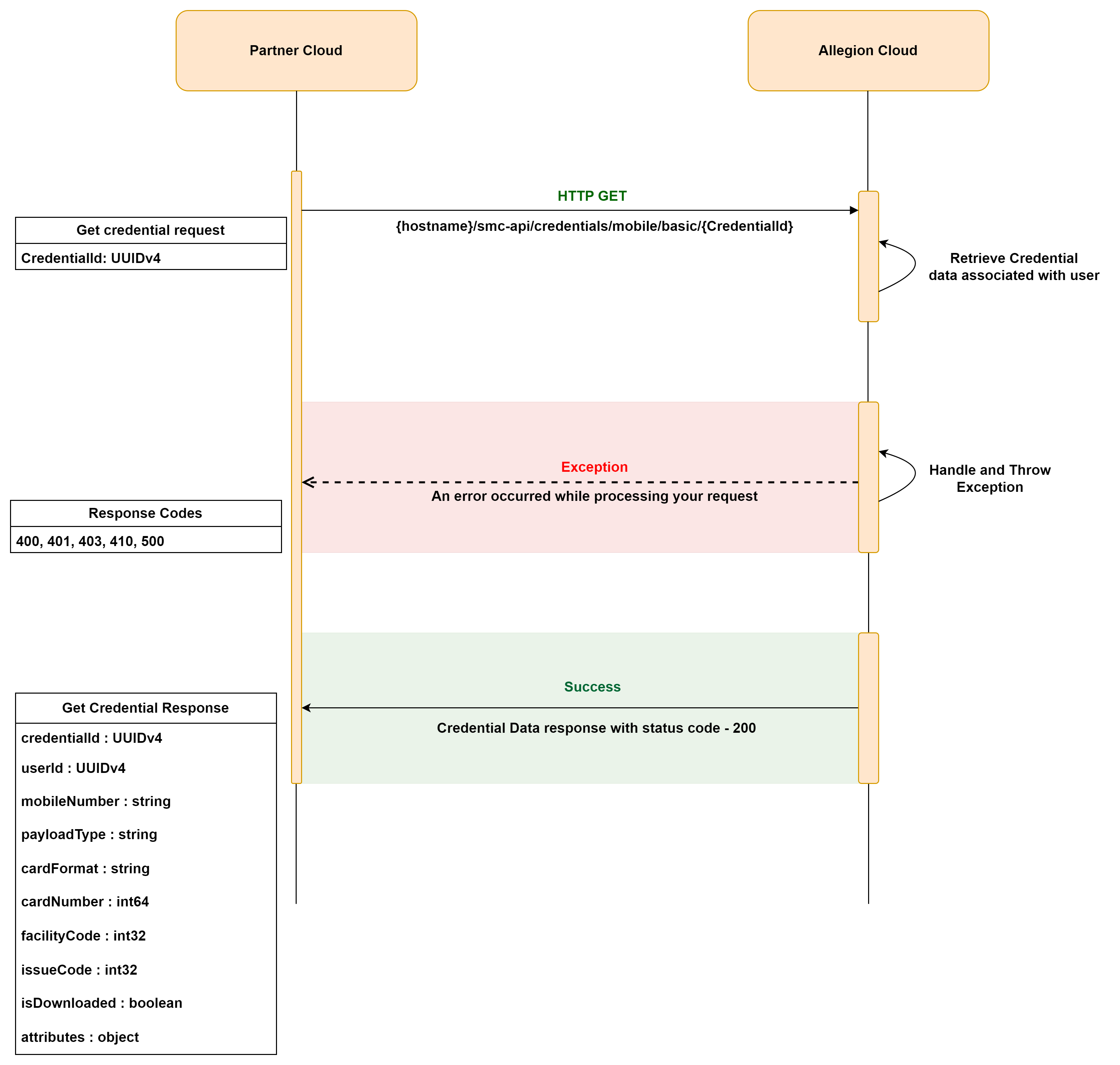
The Get Credential by Credential Id API allows you to retrieve the details of a specific mobile credential created for a patron. You can make a GET request to this API by providing the Credential Id as a parameter.

To experience this endpoint, click the Try it button. Please note that logging into the developer portal is required in order to try the API.

Zoom Pan Image

Get Credential related Errors and Resolution:

This section provides a comprehensive overview of common error messages that may be encountered while utilizing the Get Credential by Credential Id API. Each error message is accompanied by a detailed explanation of its meaning and potential causes.By understanding these error messages, developers can effectively troubleshoot issues that may arise during API integration and address them.

This section also offers comprehensive resolutions for each error message. These resolutions provide guidance and recommended actions to resolve the encountered issues. By following these resolutions, developers can overcome challenges.


No. Scenario HTTP Status Code Error Message Resolution
1. When JWT Token is invalid, expired, or incorrect 400 (Bad Request) / 401 (Unauthorized) Invalid authentication token Please ensure that the authentication token provided is a valid JWT format
2. When an empty GUID is passed as credential Id 400 (Bad Request) The Credential Id cannot be empty UUIDv4. Please use a non-zero UUIDv4 The value provided (00000000-0000-0000-0000-000000000000) is an empty UUIDv4. Please use a non-zero UUIDv4. Example: 29DDBB87-D2F7-40F1-92DA-D63DDEC185DF
3. When the role is non-administrator (manager, operator) 403 (Forbidden) You do not have permission to access the requested resource. Please contact your site administrator for more information (203) Your role does not have the necessary permissions to perform this operation. For further information, please contact your site administrator or Allegion integration engineer (203)
4. When the onboarding is not completed. 403 (Forbidden) Integration is not complete for your account. Contact your site administrator for more information Your account's integration with Allegion is incomplete. For further information, please contact your site administrator or Allegion integration engineer
5. When the credential id is not present in the system 404 (Not Found) The requested credential was not found The credential you have requested is either deleted or not currently available in the system
6. When credential Id is invalid Guid, number, or special characters 404 (Not Found) No content The Credential Id provided is not valid. Please provide a valid Credential Id generated while creating the credential
7. Generic error on server 500 (Internal Server Error) An error has occurred. Please try again later or contact support if the issue persists The system encountered an internal problem while performing a task and was unable to complete it. Please try the action again after some time, and if the issue persists, please contact Allegion integration engineer for further assistance

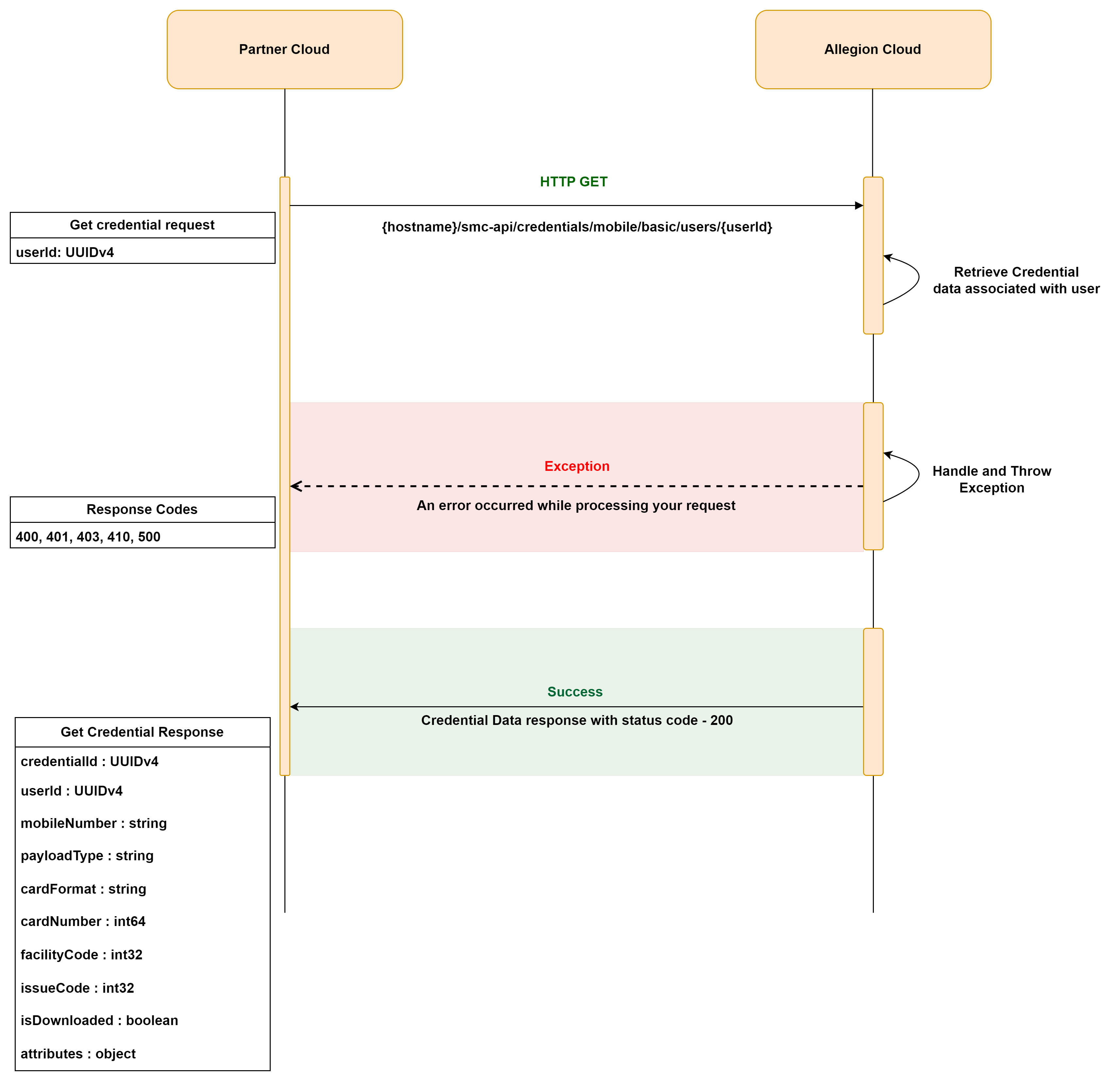
6. Get Credential by User Id

The Get Credential by User Id API enables you to retrieve the details of mobile credential created for a patron. You can make a GET request to this API by providing the User Id as a parameter.

To experience this endpoint, click the Try it button. Please note that logging into the developer portal is required in order to try the API.

Zoom Pan Image

Get Credential related Errors and Resolution:

This section provides a comprehensive overview of common error messages that may be encountered while utilizing the Get Credential by User Id API. Each error message is accompanied by a detailed explanation of its meaning and potential causes.By understanding these error messages, developers can effectively troubleshoot issues that may arise during API integration and address them.

This section also offers comprehensive resolutions for each error message. These resolutions provide guidance and recommended actions to resolve the encountered issues. By following these resolutions, developers can overcome challenges.


No. Scenario HTTP Status Code Error Message Resolution
1. When Token is invalid, expired, or incorrect 400 (Bad Request) / 401 (Unauthorized) Invalid authentication token Please ensure that the authentication token provided is a valid JWT format
2. When empty GUID is passed as user Id 400 (Bad Request) The User Id cannot be empty UUIDv4. Please use a non-zero UUIDv4 The value provided (00000000-0000-0000-0000-000000000000) is an empty UUIDv4, please use a non-zero UUIDv4. Example: 29DDBB87-D2F7-40F1-92DA-D63DDEC185DF
3. When the role is non-administrator (manager, operator) 403 (Forbidden) You do not have permission to access the requested resource. Please contact your site administrator for more information (203) Your role does not have the necessary permissions to perform this operation. For further information, please contact your site administrator or Allegion integration engineer (203)
4. When the onboarding is not completed. 403 (Forbidden) Integration is not complete for your account. Contact your site administrator for more information Your account's integration with Allegion is incomplete. For further information, please contact your site administrator or Allegion integration engineer
5. When the user id is not present in the system 404 (Not Found) The requested user is not associated with a credential The user you have requested is either deleted or not currently available in the system
6. When user Id is invalid Guid, number, or special characters 404 (Not Found) No content The User Id provided is not valid. Please provide a valid User Id that was generated while creating the credential
7. Generic error on server 500 (Internal Server Error) An error has occurred. Please try again later or contact support if the issue persists The system encountered an internal problem while performing a task and was unable to complete it. Please try the action again after some time, and if the issue persists, please contact the Allegion integration engineer for further assistance

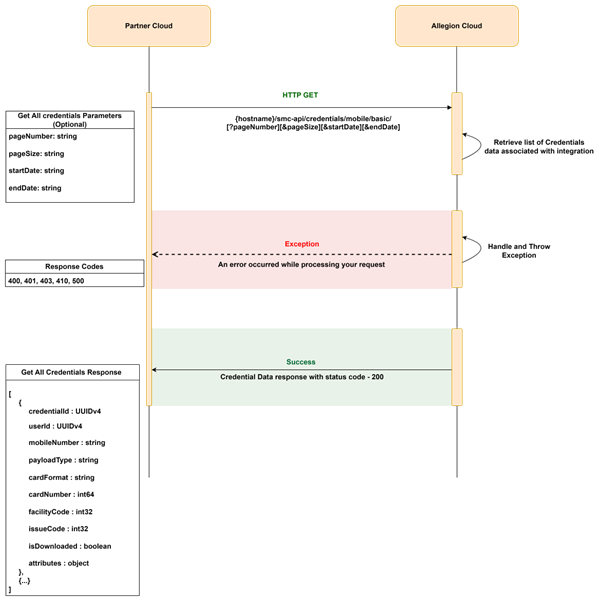
7. Get All Credentials

The Get All Credentials API allows you to retrieve detailed information about all active mobile credentials associated to your integration.

To experience this endpoint, click the Try it button. Please note that logging into the developer portal is required in order to try the API.

Zoom Pan Image

Get All Credentials related Errors and Resolution:

This section provides a comprehensive overview of common error messages that may be encountered while utilizing the Get All Credentials API. Each error message is accompanied by a detailed explanation of its meaning and potential causes. By understanding these error messages, developers can effectively troubleshoot issues that may arise during API integration and address them.

This section also offers comprehensive resolutions for each error message. These resolutions provide guidance and recommended actions to resolve the encountered issues. By following these resolutions, developers can overcome challenges.


No. Scenario HTTP Status Code Error Message Resolution
1. When Token is invalid, expired, or incorrect 400 (Bad Request) / 401 (Unauthorized) Invalid authentication token Please ensure that the authentication token provided is a valid JWT format
2. When an invalid pageNumber is passed 400 (Bad Request) The pageNumber must be greater than or equal to 1. Ensure the pageNumber is a positive integer. Example: 1
3. When an invalid pageSize is passed 400 (Bad Request) The pageSize must be greater than or equal to 1. Ensure the pageSize is a positive integer. Example: 10
4. When an invalid startDate format is provided 400 (Bad Request) Invalid startDate format. The date must be in yyyy-MM-dd format. Use the correct date format. Example: 2024-01-01
5. When an invalid endDate format is provided 400 (Bad Request) Invalid endDate format. The date must be in yyyy-MM-dd format. Use the correct date format. Example: 2024-08-15
6. When the pageSize exceeds the allowed limit 400 (Bad Request) Invalid pageSize. The maximum allowed value is {maximum allowed value}. Ensure the pageSize is within the allowed limit as specified in the error message.
7. When the requested page number exceeds available pages 404 (Not Found) Page not found. The requested page number exceeds the total number of available pages. Ensure the page number is within the range of available pages. Check the total pages and adjust accordingly.
8. When the role is non-administrator (manager, operator) 403 (Forbidden) You do not have permission to access the requested resource. Please contact your site administrator for more information (203) Your role does not have the necessary permissions to perform this operation. For further information, please contact your site administrator or Allegion integration engineer (203)
9. When the onboarding is not completed. 403 (Forbidden) Integration is not complete for your account. Contact your site administrator for more information Your account's integration with Allegion is incomplete. For further information, please contact your site administrator or Allegion integration engineer
10. Generic error on server 500 (Internal Server Error) An error has occurred. Please try again later or contact support if the issue persists The system encountered an internal problem while performing a task and was unable to complete it. Please try the action again after some time, and if the issue persists, please contact the Allegion integration engineer for further assistance

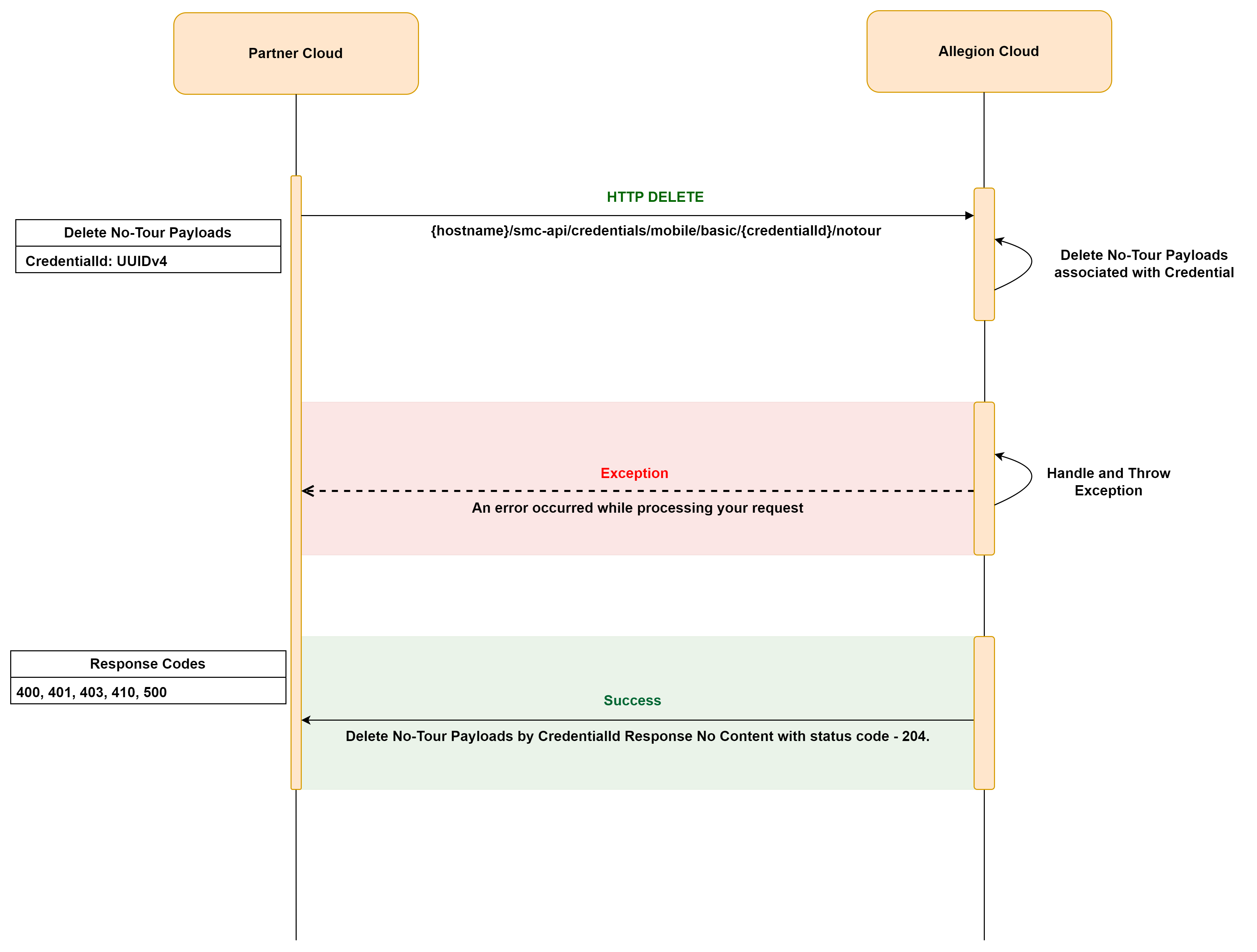
8. Delete No-Tour Payloads by Credential Id

This API enables you to remove the access associated with a specific patron's credential. It can be used when you need to completely revoke a patron's access to all doors. By using this API, you can delete the no-tour payloads associated with the credential, effectively removing the patron's access privileges.

To experience this endpoint, click the Try it button. Please note that logging into the developer portal is required in order to try the API.

Zoom Pan Image

Delete No-Tour Payloads related Errors and Resolution:

This section provides a comprehensive overview of common error messages that may be encountered while utilizing the Delete No-Tour Payloads by CredentialId API. Each error message is accompanied by a detailed explanation of its meaning and potential causes.By understanding these error messages, developers can effectively troubleshoot issues that may arise during API integration and address them.

This section also offers comprehensive resolutions for each error message. These resolutions provide guidance and recommended actions to resolve the encountered issues. By following these resolutions, developers can overcome challenges.


No. Scenario HTTP Status Code Error Message Resolution
1. When Credential id is empty UUIDv4 400 (Bad Request) The Credential Id cannot be empty UUIDv4. Please use a non-zero UUIDv4. Please provide a valid non-zero credential id in UUIDv4 format.
2. When credential does not exist or not found 404 (Not Found) Requested Credential does not exist. The credential you have requested is either deleted or not currently available in the system.
3. When you are trying to delete the same credential again 410 (Gone) No Tour payloads for the requested credential reference are no longer available. The No Tour Payload associated with CredentialId is already deleted.

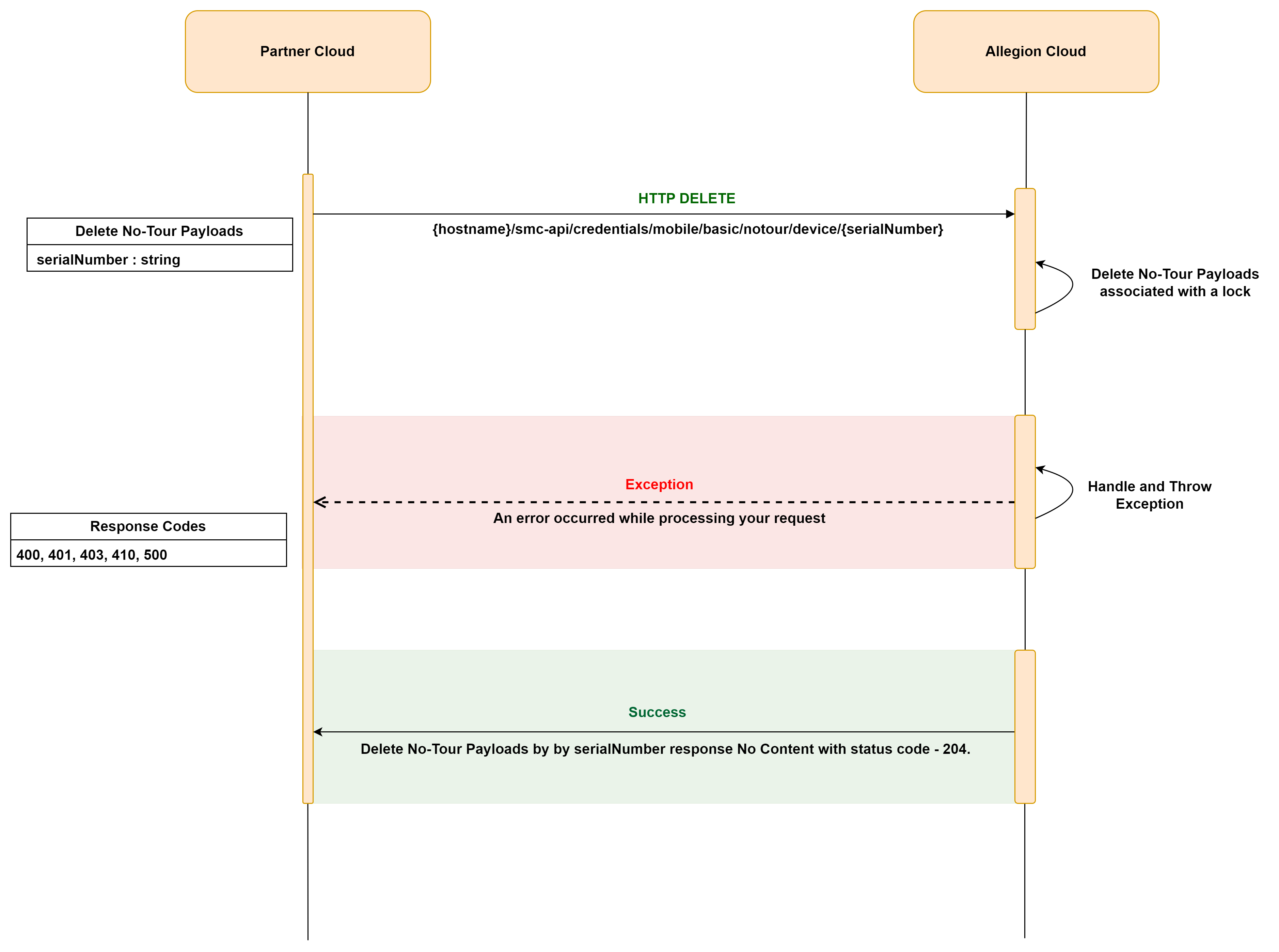
9. Delete No-Tour Payloads by Device Serial Number

The Delete No-Tour Payloads by device serial number API allows you to remove all the access associated with a specific lock using its serial number. This API can be used when you need to completely revoke all patrons access from a door. By utilizing this API, you can delete the no-tour payloads associated with the lock effectively removing access privileges for all patrons.

To experience this endpoint, click the Try it button. Please note that logging into the developer portal is required in order to try the API.

Zoom Pan Image

Delete No-Tour Payloads related Errors and Resolution:

This section provides a comprehensive overview of common error messages that may be encountered while utilizing the Delete No-Tour Payloads by Device Serial Number API. Each error message is accompanied by a detailed explanation of its meaning and potential causes.By understanding these error messages, developers can effectively troubleshoot issues that may arise during API integration and address them.

This section also offers comprehensive resolutions for each error message. These resolutions provide guidance and recommended actions to resolve the encountered issues. By following these resolutions, developers can overcome challenges.


No. Scenario HTTP Status Code Error Message Resolution
1. When serialNumber is not valid 400 (Bad Request) The Serial number provided is not valid Please provide a valid base64 encoded serial number of the lock
2. When credential does not exist or not found 404 (Not Found) No credentials were found for the provided serial number within the system The credential you have requested is either deleted or not currently available in the system

10. Delete Credential by Credential Id

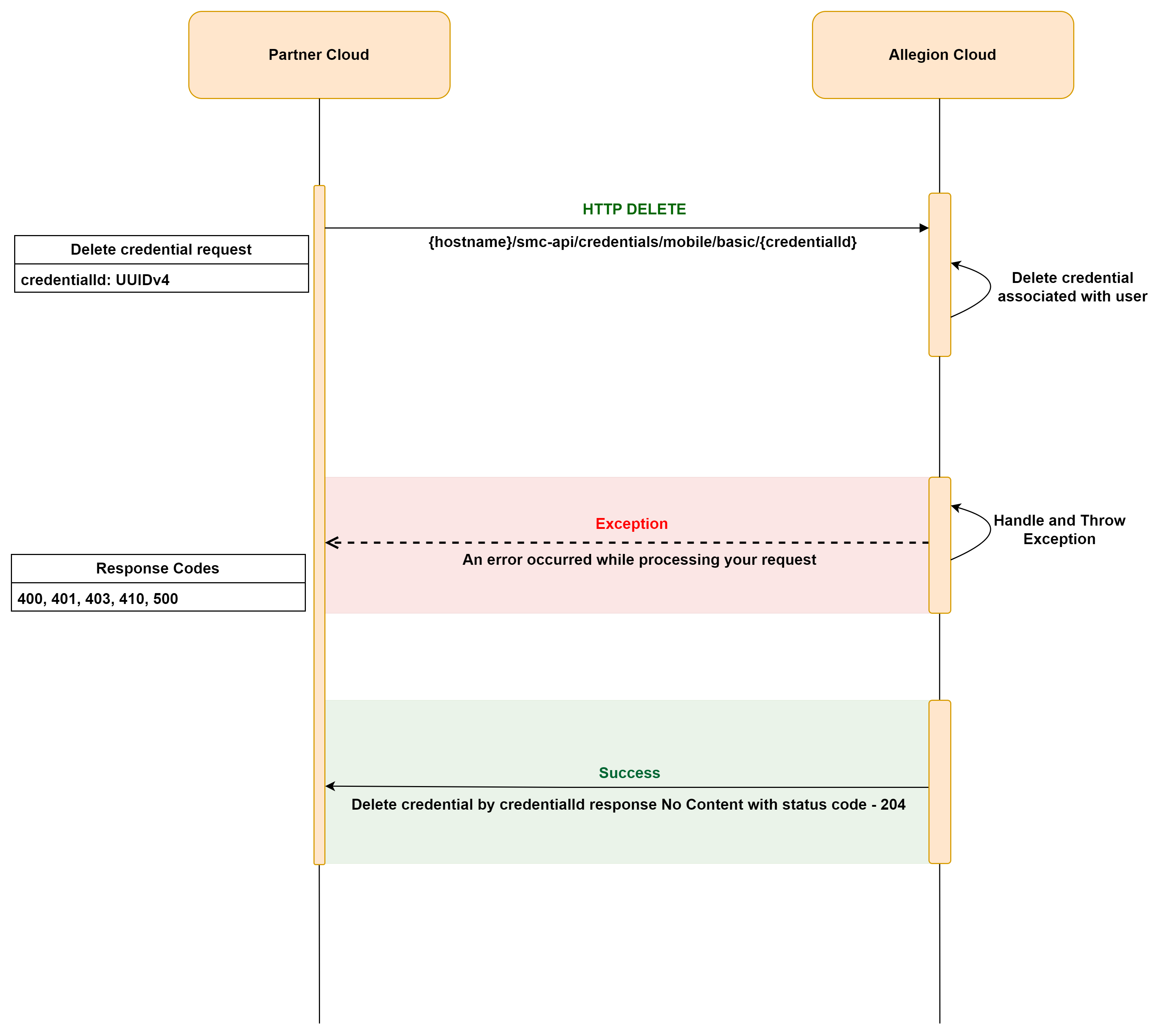
You may end up having credentials that you want to delete when you remove the patron. Use this API to delete the unused mobile credential using its unique identifier (credential id). You may be charged for each active credential, so it is important to delete un-used credentials.

To experience this endpoint, click the Try it button. Please note that logging into the developer portal is required in order to try the API.

Zoom Pan Image

Delete Credential related Errors and Resolution:

This section provides a comprehensive overview of common error messages that may be encountered while utilizing the Delete Credential by CredentialId API. Each error message is accompanied by a detailed explanation of its meaning and potential causes.By understanding these error messages, developers can effectively troubleshoot issues that may arise during API integration and address them.

This section also offers comprehensive resolutions for each error message. These resolutions provide guidance and recommended actions to resolve the encountered issues. By following these resolutions, developers can overcome challenges.


No. Scenario HTTP Status Code Error Message Resolution
1. When empty UUIDv4/GUID is passed as credential id in the route 400 (Bad Request) The Credential Id cannot be empty UUIDv4. Please use a non-zero UUIDv4. Please provide a valid non-zero credential id in UUIDv4 format.
2. When the role is non-administrator (manager, operator) 403 (Forbidden) You do not have permission to access the requested resource. Please contact your site administrator for more information (203). Your role does not have the necessary permissions to perform this operation. For further information, please contact your site administrator or Allegion integration engineer (203).
3. When credential is not found in the system 404 (Not Found) The requested credential was not found. The credential you have requested is either deleted or not currently available in the system.
4. When credential is deleted 410 (Gone) Credential is already deleted. The credential you have requested is either deleted or not currently available in the system.
5. Server error 500 (Internal Server Error) Could not delete credential, due to internal server error. The system encountered an internal problem while performing a task and was unable to complete it. Please try the action again after some time, and if the issue persists, please contact Allegion integration engineer for further assistance.

11. Delete Credential by User Id

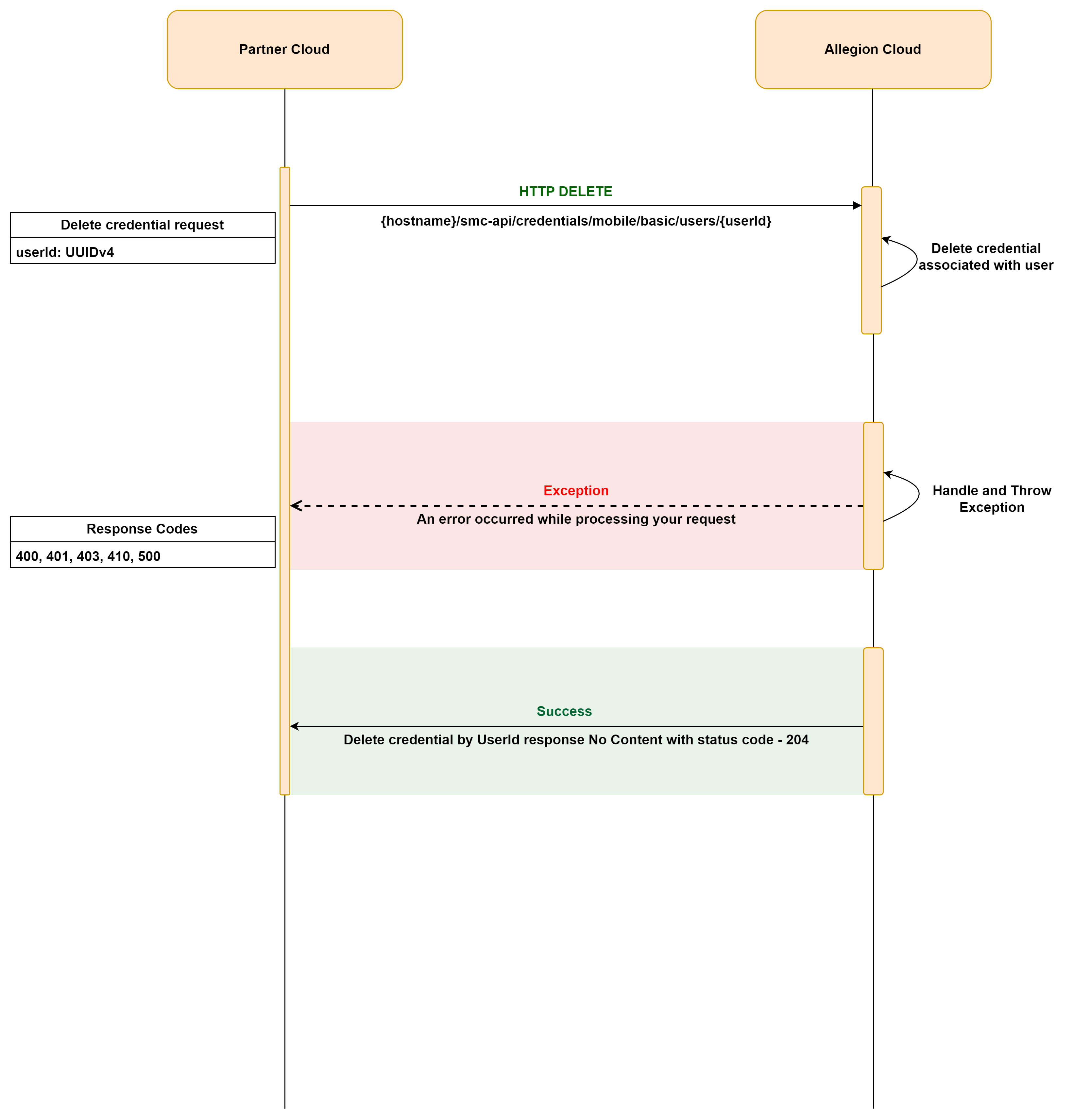
You may end up having credentials that you want to delete when you remove the patron. Use this API to delete the unused mobile credential using patron’s unique identifier (user id). You may be charged for each active credential, so it is important to delete un-used credentials.

To experience this endpoint, click the Try it button. Please note that logging into the developer portal is required in order to try the API.

Zoom Pan Image

Delete Credential related Errors and Resolution:

This section provides a comprehensive overview of common error messages that may be encountered while utilizing the Delete Credential by UserId API. Each error message is accompanied by a detailed explanation of its meaning and potential causes.By understanding these error messages, developers can effectively troubleshoot issues that may arise during API integration and address them.

This section also offers comprehensive resolutions for each error message. These resolutions provide guidance and recommended actions to resolve the encountered issues. By following these resolutions, developers can overcome challenges.


No. Scenario HTTP Status Code Error Message Resolution
1. When empty UUIDv4/GUID is passed as user id in the route 400 (Bad Request) The User Id cannot be empty UUIDv4. Please use a non-zero UUIDv4. Please provide a valid non-zero user id in UUIDv4 format.
2. When the role is non-administrator (manager, operator) 403 (Forbidden) You do not have permission to access the requested resource. Please contact your site administrator for more information (203). Your role does not have the necessary permissions to perform this operation. For further information, please contact your site administrator or Allegion integration engineer (203).
3. When credential is not found in the system 404 (Not Found) The requested credential was not found. The credential you have requested is either deleted or not currently available in the system.
4. When credential is deleted 410 (Gone) Credential is already deleted. The credential you have requested is either deleted or not currently available in the system.
5. Server error 500 (Internal Server Error) Could not delete credential, due to internal server error. The system encountered an internal problem while performing a task and was unable to complete it. Please try the action again after some time, and if the issue persists, please contact Allegion integration engineer for further assistance.

Frequently Asked Questions

In this section, we have compiled a list of frequently asked questions to provide further clarification and address common queries related to the API-Only solution. These FAQs cover a range of topics and are designed to provide comprehensive answers to help developers navigate and utilize the solution effectively.

What is the purpose of the API-Only Solution, considering we already have the Schlage Mobile Credentials API product?

The Schlage Mobile Credentials API product requires partners to develop their own mobile app using the Mobile Access BLE SDK for delivering mobile credentials to locks. The API-Only solution is specifically designed for PACS partners who want to offer the mobile credential experience within their access control software without developing a separate mobile app for delivering mobile credentials to locks. Partners can seamlessly leverage the Schlage Mobile Access App for this purpose.

What is the Schlage Mobile Access Application?

The Schlage™ Mobile Access app is a mobile application that enables patrons to securely unlock doors using their mobile devices instead of traditional physical keys or access cards. By utilizing Bluetooth technology, the app communicates with compatible Schlage™ locks, allowing patrons to conveniently access authorized spaces by presenting their mobile credentials.

Can the Schlage Mobile Access Application be used on both Android and iOS devices?

Absolutely. The Schlage Mobile Access Application supports both Android and iOS devices. We officially support and test major revisions for Android (version 10.0/API 29 or newer) and iOS (version 13 or newer) devices. While other phone models and operating systems may work, they are not officially supported at this time.

I already have an existing integration with Allegion. Do I need a new integration to utilize the API-Only Solution?

Indeed, if you choose to use the API-Only solution, you will need to set up a new integration with Allegion that is separate from any existing integrations you may already have in place. Additionally, the ENGAGE account you use for this new integration must be different from the one you are currently using for your existing integration.

What type of authentication is used in the API-Only Solution?

The API-Only Solution uses JSON Web Token (JWT) based authentication. Software partners must generate a bearer token using the Engage username and password. It is mandatory to include the token in the authorization header of each API request for authentication.

During the "Create Credential" process, should I include the card number in the request body as in the older product?

No, in the API-Only Solution, the card number will be auto-provisioned internally. A next available card number will be associated automatically when issuing the mobile credential.

Is there any expiry for the deep link(Invite) generated while issuing mobile credential?

Yes, deep link/invite expires in 24-hours. Patron must download the credential before 24 hours from issuance

When I download credential on my phone, I get to see "Issue with Credentials" Screen. What should I do?

This can happen when Patron taps on expired deep link /invite. You can issue a new credential using Create Credential API

When the credential is downloaded, I get to see "No Credentials Found" Screen. What should I do?

This can happen when the credential is deleted for the patron. Please make sure that user has a mobile credential associated

During Create Credential I have not received any invite deeplink to the mobile number, what should I do?

Please use the Resend Text Message API to re send the invite/deeplink

Once the Schlage Mobile Application is installed and the mobile credential is Downloaded, Can I invoke the "Resend Text Message" API again to get a fresh invite deeplink?

No, once you install the Schlage Mobile Application and successfully download the mobile credential post that you cannot access for a fresh invite deeplink via the “Resend Text Message” API

Contact Us for Support

If you face any difficulties during the integration of the APIs with your access control software, please reach out to your dedicated Allegion Support Integration Engineer. You can also contact us by sending an email to the following address: Allegion Support