Allegion Developer Portal
Allegion Developer Portal

After the Send Link button is selected, the system sends a link to your email. Go to your email and follow the instructions.

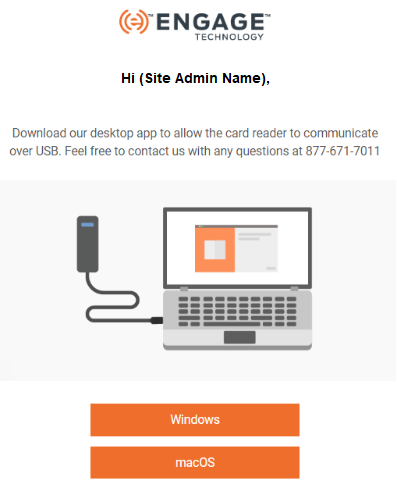
Select Windows or macOS operating system button.
Navigate to the PC “Download” folder.
Locate the Engage_Setup installation application.

NOTE: PC Administration authority (permissions) are required.
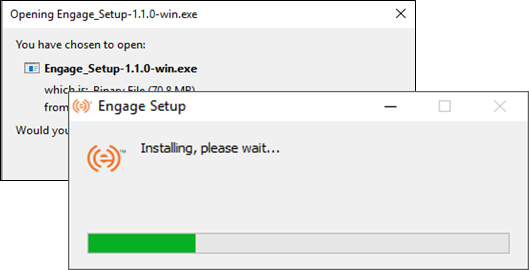
When the installation is successful, the following screens display on the desktop.
Reader Detected
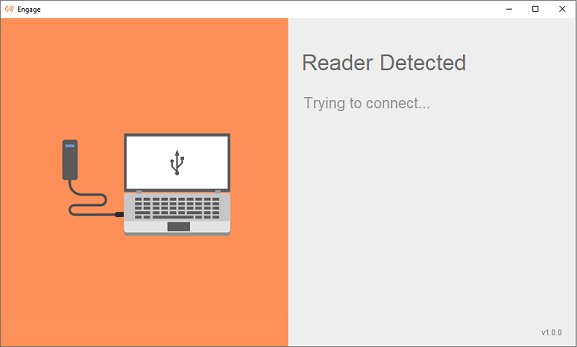
After the connection is established, the serial number and firmware version of the application displays on the screen.
Reader Connected

NOTE: Do NOT close this application.
Last Modified: October 15, 2019