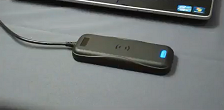
Wait a few seconds until the MT20W boots up and begins communication. The LED is solid BLUE indicating it is ready.
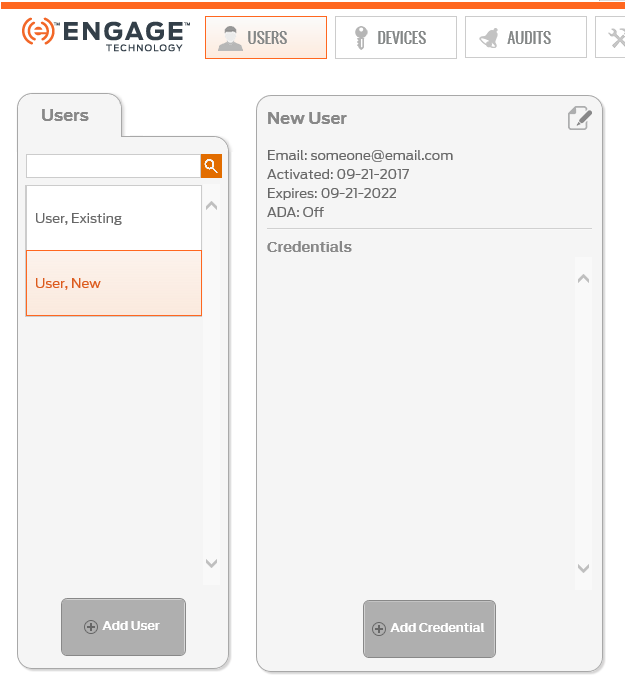
Log into the ENGAGE Web Application and Select USERS then the Users tab.
Select any User to enroll credentials.
NOTE: You must add a User if a user is not available for selection. See Adding a User.
Select the Add Credential button.
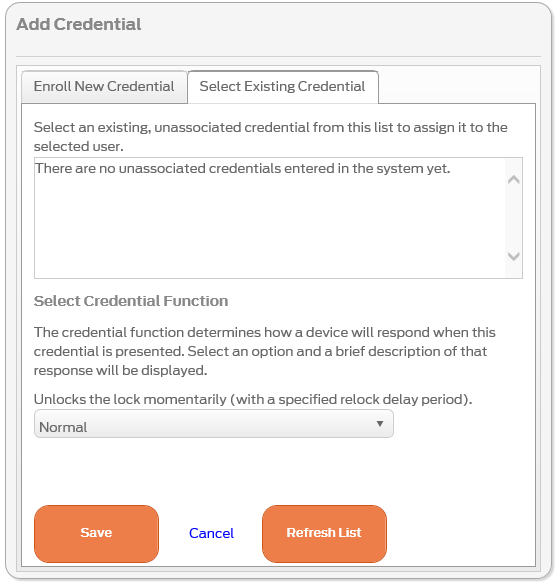
Select the Select Existing Credential tab.
Obtain a new credential from your supply of credentials (stock) to be enrolled.
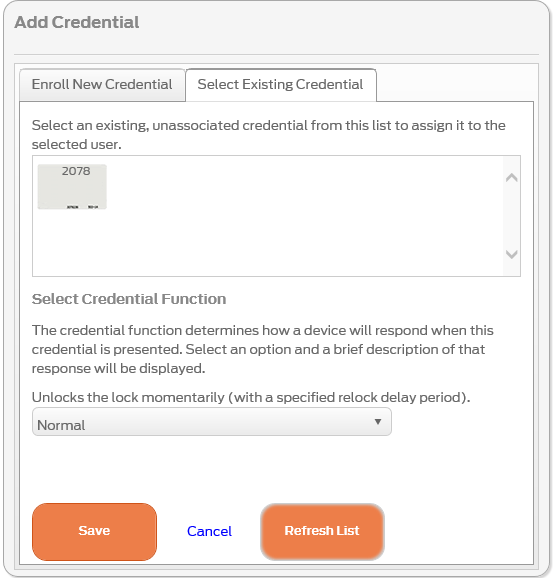
NOTE: In this case we chose credential #2078.
Present the new credential to the MT20W and wait a few seconds.
NOTE: The MT20W turns GREEN and beeps one (1) time when the card is accepted.
Repeat card presentation(s) and the enrollment process for each credential you want to make available in the Select Existing Credential tab.
VERIFY SUCCESS
Select the Refresh List button to view the newly added credential’s ink stamp number(s).
Confirm the physical "Ink Stamp" on your credential matches the new credential in the list.
NEXT STEPS:
Credential enrollment makes the credential available in ENGAGE Web Application for assignment to a User. To complete the process, the Property Administrator may need to also:
Assign at least one credential to an existing User; see Assigning Credentials.
Provide Access and Schedule Assignments for the property; see Assigning Lock Access and User Schedules.
Perform User Credential programming for No Tour device updates; see No Tour Credential Programming.
Perform device syncing or No Tour updates with each device the User has been granted Access; see Sync – Updating a Door File.