Allegion Developer Portal
Allegion Developer Portal

It is possible to assign a credential to a specific User, using the ENGAGE Mobile Application and an already enrolled ENGAGE device.
IMPORTANT WARNING: Credentials enrolled at the door, using a local device instead of the MT20W have one limitation:
The enrolled credentials are not searchable in the ENGAGE Web Application when using the Badge ID Search Utility.
NOTE: You must add a new user if the user is not already entered. See Adding a User.
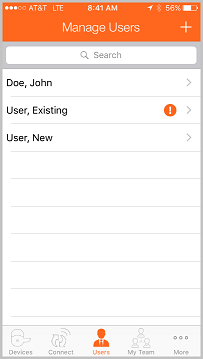
NOTE: In this case we chose Doe, John from the list.
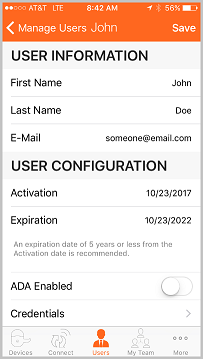
Select the Credentials menu.
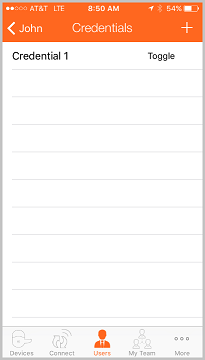
View the existing credentials assigned to this User. In this case, John Doe has no credential assignments.
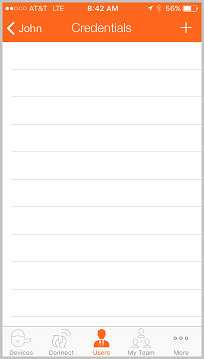
NOTE: A list of nearby commissioned devices displays.
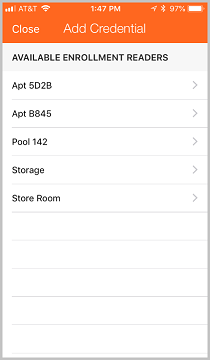
NOTE: After selection of the Storage device, the LED flashes RED for the next 20 seconds. The Storage door is waiting for a credential to be presented.
NOTE: When the device reads the credential, the ENGAGE™ Mobile Application displays a credential "Value” with asterisks ******** displayed.
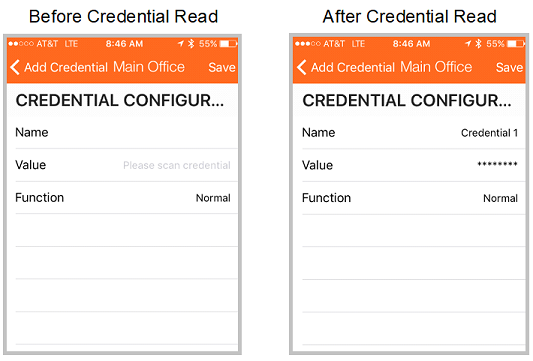
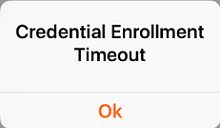
NOTE: If no credential is presented, the process "Times Out" after 20 seconds so the device can return to normal operation - securing an opening.
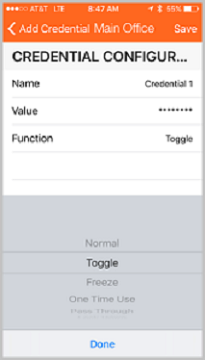
Select Done.
Select Save.
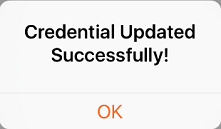
Acknowledge the Credential Updated Successfully! Message.
VERIFY SUCCESS
NEXT STEPS:
This enrollment process selects the credential function and assigns the credential to the existing User. To complete the process, the Property Administrator may need to also perform these steps:
WARNING: The enrolled credential is not search-able in the ENGAGE Web Application when using the Badge ID Search Utility.