Allegion Developer Portal
Allegion Developer Portal

Assignment of a credential connects a credential to a user to identify the user in ENGAGE Audits and in the ENGAGE devices for granting access.
HINT: To successfully assign a credential and grant access, you must have commissioned locks, added Users into ENGAGE, and created any property Schedules.
WARNING: New credential assignments require all devices that the User has assigned access to, to be programmed before the credential is honored. Device programming can be immediate with the No Tour process or provided via syncing (Door File Updates) at the door or overnight WiFi connection when available.
Open the ENGAGE Web Application.
Select USERS tab and a user to be assigned a credential. In this case we chose User, New. Notice this user has no credentials assigned.
NOTE: You must add a new user if the user is not already entered. See Adding a User if needed.
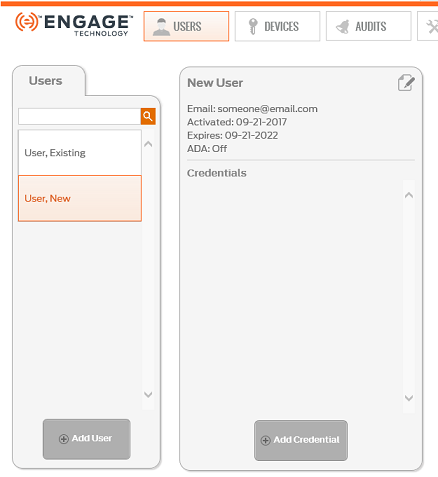
Select Add Credential button.
Select the Credential to be used from the Select Existing Credential tab. In this case credential #1965 has been selected.
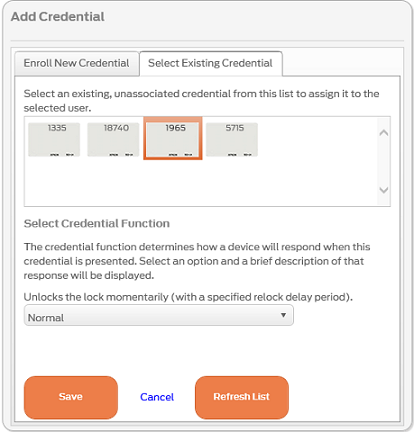
NOTE: If no credential is available, you must Enroll a Credential now.
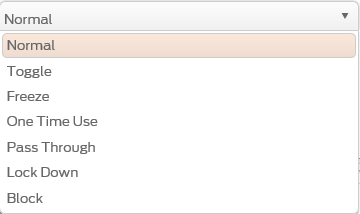
WARNING: When working with Schlage Control™ devices, a Toggle credential function acts as a Normal credential function.
VERIFY SUCCESS
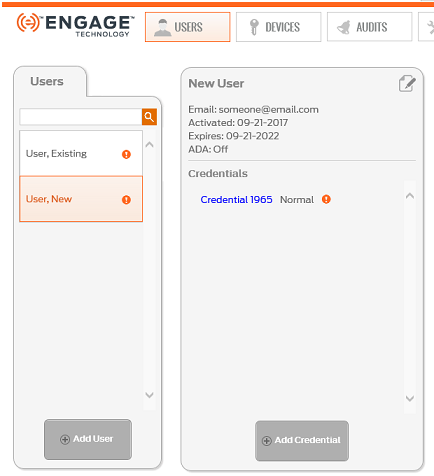
NEXT STEPS:
This process assigns a credential to the User. The Administrator needs to ensure the affected property doors are programmed before the credential access is honored at the door. Administrators need to follow these steps to complete the device programming process.
NOTE: ENGAGE displays device Update  ICONs indicating the Devices and credentials that need programming.
NOTE: To add a new device into the ENGAGE database, you must use the ENGAGE Mobile Application commissioning process.
See Device Commissioning for information on how to add a new ENGAGE compatible device into your account.