Allegion Developer Portal
Allegion Developer Portal

Adding new users can be accomplished using the ENGAGE Web Application, the ENGAGE Mobile Application or through a Hosted Server. The ENGAGE Web Application is preferred for ease of use and data entry and is shown here.
• Log into the ENGAGE Web Application and Select USERS.

• Select the Add User button at the bottom of the screen.
• Enter the Users’ information.
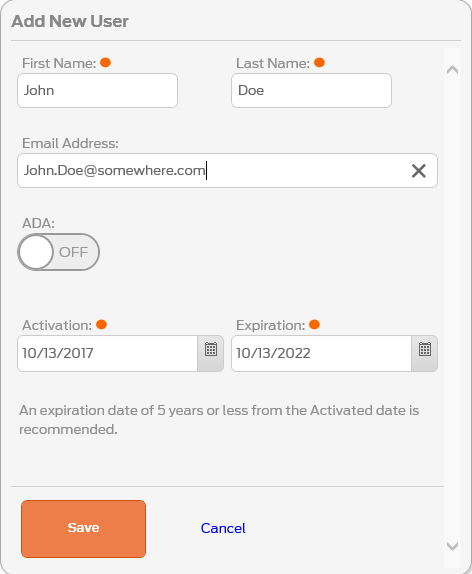
• Select SAVE.
VERIFY SUCCESS:
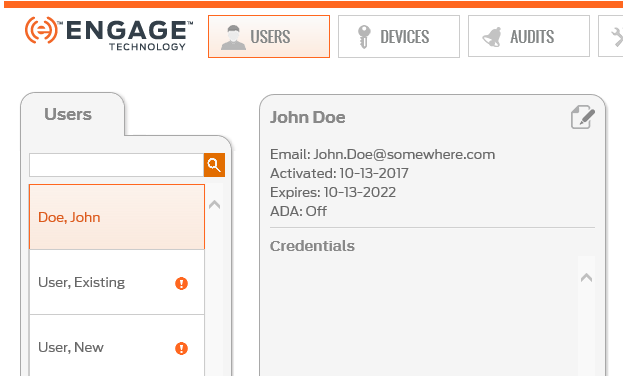
• See the momentary User Added. success message.

• See the new User (Doe, John) is now listed in the Users tab.
NEXT STEPS:
After defining a New User, the new User requires the following steps be completed:
The following JSON example displays how a user record may be structured if it was being sent to a device from a host server.
{
  "db":
  {"usrRcrd":
    {"deleteAll":1,
      "delete":[],
      "update":[],
      "add":
      [
        {
          "actDtTm": 20150303000000,
          "adaEn": 0,
          "crSch": [1],
          "expDtTm": 20350101000000,
          "fnctn": "norm",
          "prCrTyp": "card",
          "primeCr": "f7a580a987f982c4ee1d6e6419ad3d17",
          "usrID": 3
        },
        {
          "actDtTm": 20150303000000,
          "adaEn": 0,
          "crSch": [1],
          "expDtTm": 20350101000000,
          "fnctn": "norm",
          "prCrTyp": "card",
          "primeCr": "9e177a284426f7accc28b26b318b90ed",
          "usrID": 4
        }
       ]
    },
      "schedules":[
          {"days":["Mo","Tu","We","Th","Fr","Sa","Su"],"lngth":1439,"strtHr":0,"strtMn":0}
      ]
  }
}