Allegion Developer Portal
Allegion Developer Portal

The account creation and site identification are the prerequisite steps to setting up communications between the device and the Alliance Partner server (host) system.
You can create an account using either the ENGAGE Web Application or the ENGAGE Mobile Application.
For Web; enter the URL https://portal.allegionengage.com/signin into your web browser.
For Mobile; download/install the Allegion ENGAGE mobile App from one of these two app stores:
Get the ENGAGE™ Mobile App from the iTunes App Store (iOS)
Get the ENGAGE™ Mobile App from the Google Play Store (Android)
Launch/Open the Application.
Select “Create an Account”.
Agree to the Terms and Conditions.
Select the site type you would like for this account. If this is going to be a Software Alliance Member managed account please select “Third Party Software”, otherwise please select “ENGAGE Managed”.
Create your ENGAGE account using a valid email address and enter the Site/Facility name. A unique site key is assigned to the site.
ENGAGE sends an email request to verify your new account submission.
Follow the instructions in the email and confirm your new account.
Registration is now complete.
Log into the Application.
Set Host Configuration (direct device to communicate to the Alliance Partner’s or hosting server).
i. Select My Account from the icons displayed
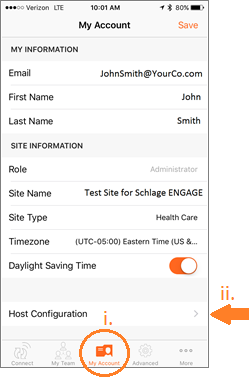
NOTE: This is an example of how the Host Configuration may look while using iOS for iPhone. It may differ slightly for other devices such as Android or iOS for iPad.
ii. Click on Host Configuration
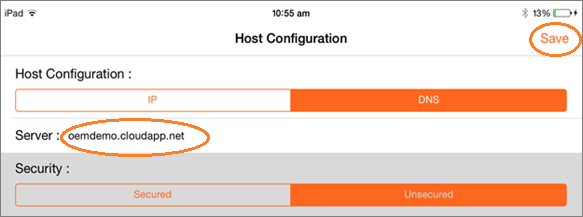
NOTE: The host config settings are applied as a last step in commissioning of a device so it can be set to the external server address prior to commissioning.
Via the My Team feature, the device owner invites the installer via email to his team and grants a specific role to the Installer. ENGAGE generates an invitation email which notifies the installer of their new access privilege.
Allegion recommends that the actual device owner be given “Administrator” privileges and can then invite the installer to the site as a “Manager”
The Installer downloads the ENGAGE mobile application to their mobile device, creates their account or logs in and follows the steps to authorize their ENGAGE device(s).
All requests to the ENGAGE API must include an authorization token passed in the Authorization header.
Basic Authentication: The authorization token is a Base64 encoded username:password for the credentials on the Allegion ENGAGE account:
Header Example: Authorization: Basic Base64Encode(username::password)
It is suggested that Alliance Partners use a value of at least 30 seconds when implementing a timeout on ENGAGE services responses.