Allegion Developer Portal
Allegion Developer Portal

The linking process for an ENGAGE Gateway and ENGAGE enabled Device requires remote linking by the IP-based access control host or RSI-enabled access control panel. The steps to link depend on the host configuration of the Gateway. See below for either IP Mode or RSI Mode link instructions.
Confirm that both the Gateway and locks are commissioned into the same ENGAGE site.
Using IP-host commands, issue a scan request of the Gateway.
NOTE: Make sure that the ENGAGE mobile application is not connected to any devices during this scan request.
Using ENGAGE IP-host commands, issue a link creation command to the Gateway.
Wait for the link procedure to complete.
The Gateway flashes green three times after successful link. The device should also indicate a successful link.
Confirm that both Gateway and the devices are commissioned into the same ENGAGE partner-managed site.
Put the Gateway into link mode by having the ACP issue a set link command to the Gateway over the RSI protocol. The Gateway will start flashing, alternating red then blue while it is in link mode.
Put the desired device into link mode. See 'Enter Link Mode' section below for instructions.
The Gateway flashes green three times after successful link. The device should also indicate a successful link.
This section provides examples using POSTMAN to show how Gateway APIs are used to link edge devices to a Gateway.
NOTE: It is assumed before beginning that a Gateway has been commissioned to a site and the Gateway IP address has been configured in a POSTMAN environmental variable.
Step 1: Perform a GET /gateway/deviceInfo API call.
Figure: GET_gateway_deviceInfo shows the return Device info from the API: GET /gateway/deviceInfo.
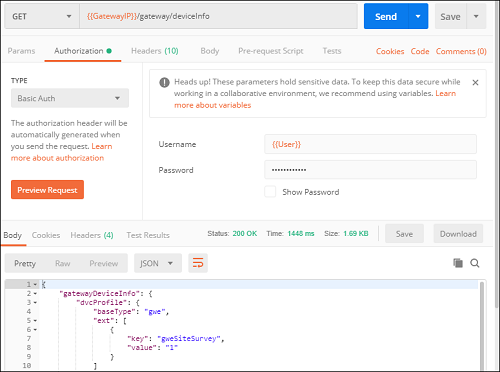
Figure: GET_gateway_deviceInfo_extendedStatus shows the same return data with extendedStatus [].
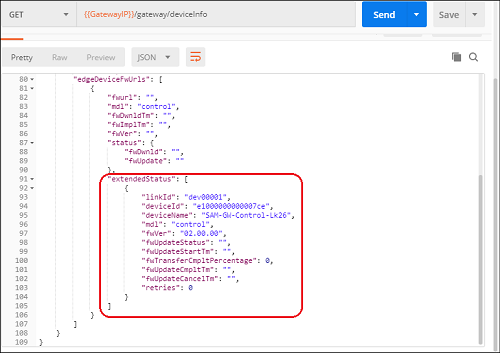
In this example, the LinkId is "dev00001" and it is linked into this Gateway.
Step 2: Add the edgedevice to the Gateway site using the MAPP.
Step 3: Perform a GET /gateway/scanList API call.
Figure: GET_gateway_scanList shows the serial number of the edgedevice to be linked.
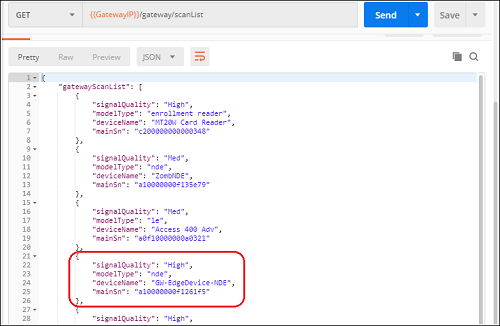
In this example "deviceName": "GW-EdgeDevice-NDE", "mainSn": "a10000000f1261f5"
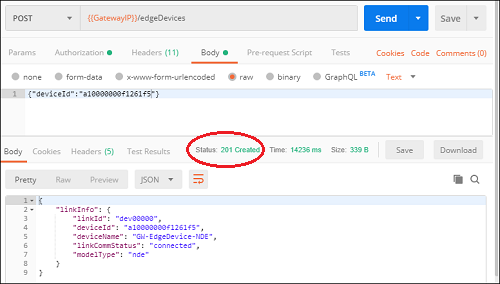
Step 4: Perform a POST /edgeDevices API call.
Figure: POST /edgeDevices shows the serial number "deviceId" that is added to the POSTMAN payload.
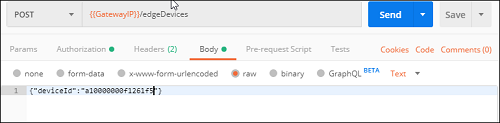
Step 5: The Figure: POST /edgeDevices "deviceId" reply shows linkInfo and the Status: 201 Created.
Step 6: The GET_gateway_edgeDevice_linkList shows the newly linked device and shows Status: 200 OK.
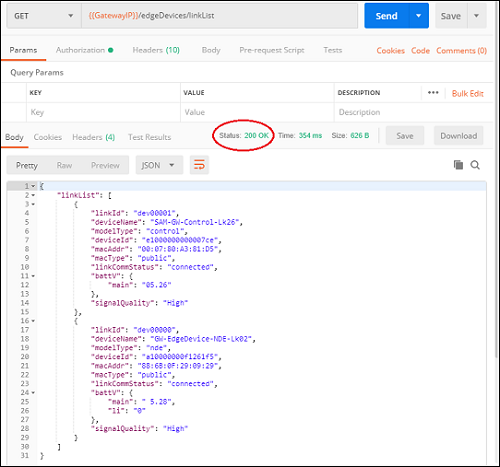
The newly linked device is now available on the Gateway site and can be controlled through the Gateway.
WARNING: The device will not show up in the Connect screen of the ENGAGE mobile app after linking to the Gateway. To reconnect to NDE; while holding the interior lever apply a credential, then release the lever. Refreshing the Connect screen in the application connects to the device for up to 30 seconds.
For more detailed APIs to link devices to the Gateway, see the Linking and Controlling Edge Devices section.