Allegion Developer Portal
Allegion Developer Portal

The intent of the Proof-of-Concept server (POC) is to allow Allegion Software Alliance Members to quickly gain an understanding of the details necessary to implement a basic ENGAGE WebSocket Server. Please note that while operating WebSockets over SSL/TLS (wss) is encrypted, it is the responsibility of the Alliance Partners to verify and validate any server implementation which they plan to use. It is not recommended that this POC software be used directly in a production environment, and it is the responsibility of the Software Alliance Member to create their own WebSocket server and conduct all necessary security assessments of their implementation of the server.
Allegion provides this Proof_of_Concept server software “as is”, without warranty of any kind, express or implied, including but not limited to the warranties of merchantability, fitness for a particular purpose and noninfringement. In no event shall the authors or copyright holders be liable for any claim, damages or other liability, whether in an action of contract, tort or otherwise, arising from, out of or in connection with the software or the use or other dealings in the software.
The instructions included here assume the reader has some basic familiarity with the Gateway as HTTP server mode of operation. If any piece of this documentation has already been configured it can be skipped.
A link to the .zip package with the relevant files is here: (insert link here)
This POC is implemented in the Windows environment.
The POC code requires Python 2.72.12 or later to run. Please download the installer directly.
Python 2.72.12 Installation Instructions.
Run the installation wizard after downloading is complete.
Ensure you select the option “Add python.exe to Path” to enable easier running of python commands.
_Setup.png)
You will need a copy of the Microsoft Visual C++ compiler for Python to work correctly. Please download the installer directly
Run the installation wizard after download has completed.
Finally, as this demonstration runs web servers on your PC, you need to disable your firewall completely or as a minimum allow incoming and outgoing connections on ports 8080 and 8081 to ensure proper operation.
Once Python and the Microsoft Visual C++ compiler are installed, the .zip package needs to be unpacked and saved to the local machine. For the purposes of this document we will assume that the .zip package has been unpacked to the following location:
The folder structure created under this path contains the demonstration WebSocket server configuration files in the nested EngageWS_package_1.1 folder as well as demonstration certificate files. Note that some of the nested folders contain a file called ‘README.md’. A Markdown file (.md) is simply a text file that describes the contents of the particular folder it resides in and can be safely ignored.
Open a terminal session:
Navigate to the respective directory where the .zip package is unpacked and enter the nested EngageWS_package_1.1 folder (for example: cd \EngageWS_package\EngageWS_package_1.1).
Run the following command to install the necessary Python modules:
The terminal output should show that all packages were installed correctly. If this is not the case, please contact your Software Alliance Member Integration Engineer.
Once pip has completed the install of the Python modules defined in the requirements.txt file, you need to configure the server by modifying the example.config.json file located in the “config” folder which came from the unpacked .tar package.
For the purposes of this section we will run the server without TLS. The Gateway will not communicate via an unsecured WebSocket connection, however the purpose of this section is to prove that Python and the module requirements, as well as the configuration settings are correctly working. TLS will be added later. To avoid any competing programs running on the host machine, we will proceed with this example using port 8080. This port was chosen for the example only to avoid interference from the host operating system. Other ports may be used in a production environment.
In order to run the WebSocket server as unsecure, set the “ssl_enabled” tag to “false” (without quotation) and set the “server_port” to 8080. The config file should look as follows:
{
    "server_port": 8080,
    "site_key_file": "./config/sitekey",
    "ssl_info": {
        "ssl_enabled": false,
        "ssl_key": "./config/gw.key.1.pem",
        "ssl_cert": "./config/gw.crt.2"
    },
    "event_subscription_info": {
    "gateway_events": true,
    "edgedevice_events": true
    }
}
Save the file with the file name “config.json” once the modification to the server port and ssl enable is complete.
Your terminal should still be in the EngageWS_package_1.1 directory. Run the following command to start the unsecure WebSocket server.
The terminal output should look similar to the following:
2017-11-17 08:54:14-0500 [-] Log opened.
2017-11-17 08:54:14-0500 [-] Site starting on 8080
2017-11-17 08:54:14-0500 [-] Starting factory <twisted.web.server.Site instance at 0x0000000005160A48>
2017-11-17 08:54:14-0500 [-] Starting server version 1.1
If the terminal output is not similar to the above, contact your Software Alliance Member Integration Engineer.
At this point, assuming the terminal output did match the above, you are now successfully hosting an unsecure WebSocket server. However, in order to communicate with an ENGAGE Gateway, connections between the WebSocket host server and the Gateway must be secured under a TLS/SSL connection. The following sections define how to modify your unsecure WebSocket server into a secured WebSocket server demonstration.
To close the unsecure WebSocket server, do the following in the terminal window:
The terminal should report the following to confirm that the unsecure WebSocket server has been closed:
2017-11-17 10:24:48-0500 [-] Received SIGINT, shutting down.
2017-11-17 10:24:48-0500 [twisted.web.server.Site] (TCP Port 8080 Closed)
2017-11-17 10:24:48-0500 [-] Stopping factory <twisted.web.server.Site instance at 0x0000000005160A48>
2017-11-17 10:24:48-0500 [-] Main loop terminated.
This section describes how to configure the Root CA hosting server demo; a second webserver that runs in parallel with the WebSocket host server providing an interface for the ENGAGE Gateway to retrieve a top level root certificate.
That is, this demonstration provides a basic programmatic implementation of the certificate update mechanism described in the ENGAGE – Lock Root Certificate Update App Note. Refer to that documentation for more details on the overall operation mimicked herein.
To run a secure WebSocket server, the Gateway must be able to download and verify the host SSL certificate. To do this, the Gateway validates the host’s certificate using the root certificate. Both the WebSocket server URL and the Root CA Hosting Server URL are configured in the Gateway during the commissioning process with the ENGAGE Mobile Application.
For the purposes of the demo Root CA Hosting server example, use the following:
Server URL: https://(your server’s IP address):8080/engage_wss
CA Server URL: http://(your server’s IP address):8081/engage/newCA/current
In the above configuration settings, replace (your server’s IP address) with the IPv4 dotted notation IP address matching your PC’s Ethernet/WiFi connection to the ENGAGE Gateway. Take care to note the difference, both in connection type (https vs http) and port (8080 vs 8081) between the two settings when entering them fully in the mobile app (see the Section: Set-up the Gateway).
NOTE: The endpoints specified above are purely a consequence of the example servers provided. Your production implementation may likely vary.
The Gateway automatically downloads the root CA from the CA server specified after commissioning is complete. The root CA hosted on the server MUST be the top-level root signing certificate of the chain of trust certificates that ends with the SSL certificate running on the secure WebSocket server.
The demo certificate hosting server is located in the /integration/cert-hosting directory. In order to run this server there are two necessary files, which must be included in this same /integration/cert-hosting directory:
Site Key File (named “sitekey”)
Root CA File (named “rootca.der”)
The sitekey file is used to create a SHA-1 HMAC digest of the rootca.der file. This digest is required to be sent in the GET JSON response from the host. This allows the Gateway to validate the authenticity and integrity of the root CA. For the example Root CA hosting server to function properly, the sitekey file must be a text file with the site key used to commission the Gateway. The site key must be formatted as hex, with no spaces, and be exactly 64 bytes large. An example sitekey file is included below:
112233445566778899aabbccddeeff112233445566778899aabbccddeeff1122
An example rootca.der file has been provided in the demo package. It is a matching root CA for the example WebSocket SSL Certificate and Key also provided in the root directory of the demo package.
For the purposes of this example CA hosting Server, copy the included sitekey herein (or make your own) and the rootca.der file to the /integration/cert-hosting directory under the EngageWS_package_1.1 folder.
NOTE: You need to either create a new site using the provided site key, or modify the sitekey file to match the actual site key of the site to which the Gateway is commissioned or communication will not be successful.
The commissioning of the Gateway is outside the scope of this document, however the following is a screen shot of how the example WebSocket server and Root CA hosting server would be configured in the Gateway using the ENGAGE Mobile Application (iOS version 2.0.75). Please note that other versions of the ENGAGE Mobile Application may appear slightly differently.
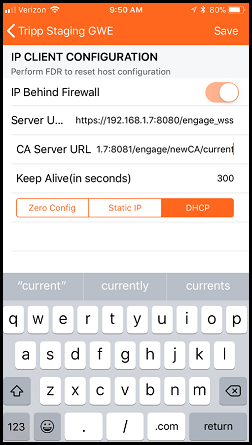
To run the CA Server, open another instance of terminal and navigate to the /integration/cert-hosting directory. Then run the following command:
The example CA Server should provide output similar to the following:
* Running on http://0.0.0.0:8081/ (Press CTRL+C to quit)
Got a request for newCA from 192.168.1.3
subpath == current
query serialNumber == AAAAAAAAAACgsQAAAAACBg==
query hashType == primary
query v == 2
Returning: {"cert_url": "http://192.168.1.7:8081/engage/certificates", "hash":
"oVD3oOqtHpqEEv+0a89oHmZsKvE="}
192.168.1.3 - - [17/Nov/2017 15:50:24] "GET
/engage/newCA/test?serialNumber=AAAAAAAAAACgsQAAAAACBg==&hashType=primary&v=2
HTTP/1.1" 200 –
After the Gateway has received the JSON response, it attempts to download the rootca.der file located at the “cert_url” location provided in the JSON response to the previous request. The example CA Server provides the rootca.der file to the Gateway and the terminal output should look like the following:
Got a request to download certificate from 192.168.1.3
192.168.1.3 - - [17/Nov/2017 15:50:24] "GET /engage/certificates HTTP/1.1" 200 –
If the terminal output is not similar to the above, contact your Software Alliance Member Integration Engineer.
NOTE: Your hash value will likely be different depending on the site key and rootca.der file used.
To run the secure WebSocket server, you need to configure the server by modifying the example.config.json file located in the “config” folder. For secure communication, the WebSocket server needs to provide its certificate to the Gateway. This certificate must be signed by the root signing certificate that was hosted by the CA Server. An example certificate and certificate private key have been provided that are properly signed by the example root certificate (rootca.der) mentioned in the CA Server section.
Copy the certificate and key file to the /config directory where the “example.config.json” resides. Also copy the sitekey file which was used for the CA Server to the /config directory.
Once these three files (certificate, certificate key, site key) have been copied to the /config directory, modify the example.config.json file to look as shown below:
{
    "server_port": 8080,
    "site_key_file": "./config/sitekey",
    "ssl_info": {
        "ssl_enabled": true,
        "ssl_key": "./config/gw.key.1.pem",
        "ssl_cert": "./config/gw.crt.2"
    },
    "event_subscription_info": {
    "gateway_events": true,
    "edgedevice_events": true
    }
}
Save the file with the file name “config.json” once the required modifications are complete.
The original terminal session should still be in the nested EngageWS_package_1.1 directory.
Run the following command to start the secure WebSocket server:
The terminal output should look similar to the following:
2017-11-17 08:54:14-0500 [-] Log opened.
2017-11-17 08:54:14-0500 [-] Site starting on 8080
2017-11-17 08:54:14-0500 [-] Starting factory <twisted.web.server.Site instance at 0x0000000005160A48>
2017-11-17 08:54:14-0500 [-] Starting server version 1.1
If the terminal output matches the above, you are now successfully hosting a secure WebSocket server. Very soon after this is completed you should see the Gateway initiate a connection to the WebSocket server. The terminal output should look similar to the following:
2017-11-20 10:42:39-0500 [_GenericHTTPChannelProtocol (TLSMemoryBIOProtocol),0,192.168.1.3] New credentials request from 192.168.1.3
2017-11-20 10:42:39-0500 [_GenericHTTPChannelProtocol (TLSMemoryBIOProtocol),0,192.168.1.3] Request Body :: MDAwMDAwMDAwMDAwMDAwMEEwQjEwMDAwMDAwMDAyMDY6NkRENjA4NjY4MTYyM0IyODM 2NUQ2MjUxODJDQjNFODU2ODI1RkNFMzY5M0QzNDM5NEVFQTNCOEI1MjJFOTAwRTox
2017-11-20 10:42:39-0500 [_GenericHTTPChannelProtocol (TLSMemoryBIOProtocol),0,192.168.1.3] base64 decoded request body :: 0000000000000000A0B1000000000206:6DD6086681623B28365D625182CB3E856825FCE3693 D34394EEA3B8B522E900E:1
2017-11-20 10:42:39-0500 [_GenericHTTPChannelProtocol (TLSMemoryBIOProtocol),0,192.168.1.3] Good request from sn: 0000000000000000a0b1000000000206
2017-11-20 10:42:39-0500 [_GenericHTTPChannelProtocol (TLSMemoryBIOProtocol),0,192.168.1.3] Saving new credentials 0000000000000000A0B1000000000206:vb0tg7Pn+mojQ08gYm0L8LY5qvIJPERrdKLLnJ0aWWs=
2017-11-20 10:42:39-0500 [-] "192.168.1.3" - - [20/Nov/2017:15:42:38 +0000] "POST /engage/newCredentials HTTP/1.1" 200 44 "-" "-"
2017-11-20 10:42:39-0500 [_GenericHTTPChannelProtocol (TLSMemoryBIOProtocol),1,192.168.1.3] Client connecting: tcp4:192.168.1.3:34589
2017-11-20 10:42:39-0500 [_GenericHTTPChannelProtocol (TLSMemoryBIOProtocol),1,192.168.1.3] Client auth: Basic MDAwMDAwMDAwMDAwMDAwMEEwQjEwMDAwMDAwMDAyMDY6dmIwdGc3UG4rbW9qUTA4Z1lt MEw4TFk1cXZJSlBFUnJkS0xMbkowYVdXcz0=
2017-11-20 10:42:39-0500 [_GenericHTTPChannelProtocol (TLSMemoryBIOProtocol),1,192.168.1.3] Credentials are good
2017-11-20 10:42:39-0500 [_GenericHTTPChannelProtocol (TLSMemoryBIOProtocol),1,192.168.1.3] Client supplied protocols: ['engage.v1.gateway.allegion.com']
2017-11-20 10:42:39-0500 [_GenericHTTPChannelProtocol (TLSMemoryBIOProtocol),1,192.168.1.3] Selecting client protocol - engage.v1.gateway.allegion.com
2017-11-20 10:42:39-0500 [_GenericHTTPChannelProtocol (TLSMemoryBIOProtocol),1,192.168.1.3] WebSocket connection open.
2017-11-20 10:42:39-0500 [_GenericHTTPChannelProtocol (TLSMemoryBIOProtocol),1,192.168.1.3] Sending subscription message
2017-11-20 10:42:39-0500 [_GenericHTTPChannelProtocol (TLSMemoryBIOProtocol),1,192.168.1.3] Sending engage message: {"subscriptionId": 1, "subscription": [{"source": "gateway", "subscriptionBody": {}, "eventingEnabled": true}, {"source": "edgeDevice", "subscriptionBody":
{}, "eventingEnabled": true}]}
If the terminal output is not similar to the above, please contact your Software Alliance Member Integration Engineer.
Additionally, once ENGAGE edge devices are linked to the Gateway, any audit information generated in the edge device will immediately be seen in the terminal output as part of the subscription stream. An example of this audit stream is as follows:
2017-11-20 10:47:14-0500 [_GenericHTTPChannelProtocol (TLSMemoryBIOProtocol),1,192.168.1.3] Text message received: {"eventId":2,"event":{"eventType":"Audit","source":"edgeDevice","deviceId":"a100000000002479","eventBody":"{\"edgeDevice\":{\"linkId\":\"dev00000\",\"audits
\":[{\"event\":\"07040000\",\"time\":\"20171120104717\"}]}}"}}
2017-11-20 10:47:14-0500 [_GenericHTTPChannelProtocol (TLSMemoryBIOProtocol),1,192.168.1.3] Valid Protocol Event from tcp4:192.168.1.3:34589 Recieved!
2017-11-20 10:47:15-0500 [_GenericHTTPChannelProtocol (TLSMemoryBIOProtocol),1,192.168.1.3] Text message received: {"eventId":3,"event":{"eventType":"Audit","source":"edgeDevice","deviceId":"a100000000002479","eventBody":"{\"edgeDevice\":{\"linkId\":\"dev00000\",\"audits
\":[{\"event\":\"07000000\",\"time\":\"20171120104719\"}]}}"}}
2017-11-20 10:47:15-0500 [_GenericHTTPChannelProtocol (TLSMemoryBIOProtocol),1,192.168.1.3] Valid Protocol Event from tcp4:192.168.1.3:34589 Received!
Closing the Secure WebSocket Server should be handled identically to closing the Unsecure WebSocket server.
An Example of how to utilize the WebSocket Subprotocol has also been included with this Proof-of-Concept server. This example code runs the secure WebSocket server and requests the ScanList from the Gateway every 10 seconds after the ScanList response has been received.
To run this example after the Secure WebSocket server has been successfully set up and run, close the secure WebSocket server and navigate to the /examples directory. Then execute the following command:
The terminal output should appear as follows:
2017-11-20 10:50:50-0500 [-] Log opened.
2017-11-20 10:50:50-0500 [-] Site (TLS) starting on 8080
2017-11-20 10:50:50-0500 [-] Starting factory <twisted.web.server.Site instance at 0x0000000005F4FE48>
2017-11-20 10:50:50-0500 [-] Starting server version 1.0
2017-11-20 10:50:55-0500 [-] I'm the example user application!
2017-11-20 10:50:55-0500 [-] There is no connection yet!
2017-11-20 10:50:55-0500 [-] User application is done for now...
2017-11-20 10:50:58-0500 [_GenericHTTPChannelProtocol (TLSMemoryBIOProtocol),0,192.168.1.3] New credentials request from 192.168.1.3
2017-11-20 10:50:58-0500 [_GenericHTTPChannelProtocol (TLSMemoryBIOProtocol),0,192.168.1.3] Request Body :: MDAwMDAwMDAwMDAwMDAwMEEwQjEwMDAwMDAwMDAyMDY6MkJBN0U0RkI5MDQ4QTE1 NEUxNkVFRTA4MjU4MDc1MzJCRkEwOTE5QzkwNTVBQUIwNjk1QzM3QjJBRDhFMjIyRjox
2017-11-20 10:50:58-0500 [_GenericHTTPChannelProtocol (TLSMemoryBIOProtocol),0,192.168.1.3] base64 decoded request body
:: 0000000000000000A0B1000000000206:2BA7E4FB9048A154E16EEE0825807532BFA0919C9055A AB0695C37B2AD8E222F:1
2017-11-20 10:50:58-0500 [_GenericHTTPChannelProtocol (TLSMemoryBIOProtocol),0,192.168.1.3] Good request from sn: 0000000000000000a0b1000000000206
2017-11-20 10:50:58-0500 [_GenericHTTPChannelProtocol (TLSMemoryBIOProtocol),0,192.168.1.3] Saving new credentials 0000000000000000A0B1000000000206:VhtqU0vCoH3qHrTrgGxVkkXtBIp7Ucyv0KgTVIAgcFA=
2017-11-20 10:50:58-0500 [-] "192.168.1.3" - - [20/Nov/2017:15:50:57 +0000] "POST /engage/newCredentials HTTP/1.1" 200 44 "-" "-"
2017-11-20 10:50:59-0500 [_GenericHTTPChannelProtocol (TLSMemoryBIOProtocol),1,192.168.1.3] Client connecting: tcp4:192.168.1.3:38040
2017-11-20 10:50:59-0500 [_GenericHTTPChannelProtocol (TLSMemoryBIOProtocol),1,192.168.1.3] Client auth: Basic MDAwMDAwMDAwMDAwMDAwMEEwQjEwMDAwMDAwMDAyMDY6Vmh0cVUwdkNvSDNxSHJUcmd HeFZra1h0QklwN1VjeXYwS2dUVklBZ2NGQT0=
2017-11-20 10:50:59-0500 [_GenericHTTPChannelProtocol (TLSMemoryBIOProtocol),1,192.168.1.3] Credentials are good
2017-11-20 10:50:59-0500 [_GenericHTTPChannelProtocol (TLSMemoryBIOProtocol),1,192.168.1.3] Client supplied protocols: ['engage.v1.gateway.allegion.com']
2017-11-20 10:50:59-0500 [_GenericHTTPChannelProtocol (TLSMemoryBIOProtocol),1,192.168.1.3] Selecting client protocol -engage.v1.gateway.allegion.com
2017-11-20 10:50:59-0500 [_GenericHTTPChannelProtocol (TLSMemoryBIOProtocol),1,192.168.1.3] WebSocket connection open.
2017-11-20 10:50:59-0500 [_GenericHTTPChannelProtocol (TLSMemoryBIOProtocol),1,192.168.1.3] Sending subscription message
2017-11-20 10:50:59-0500 [_GenericHTTPChannelProtocol (TLSMemoryBIOProtocol),1,192.168.1.3] Sending engage message: {"subscriptionId": 1, "subscription": [{"source": "gateway", "subscriptionBody": {}, "eventingEnabled": true}, {"source": "edgeDevice", "subscriptionBody": {}, "eventingEnabled": true}]}
2017-11-20 10:50:59-0500 [-] Receiving a new connection! => 0000000000000000A0B1000000000206
2017-11-20 10:51:11-0500 [-] Sending request to connection 0000000000000000A0B1000000000206!
2017-11-20 10:51:11-0500 [-] @@@@@@@@@Request@@@@@@@@
2017-11-20 10:51:11-0500 [-] request_id: 1
2017-11-20 10:51:11-0500 [-] Request Method: GET
2017-11-20 10:51:11-0500 [-] Request Path: /gateway/scanList
2017-11-20 10:51:11-0500 [-] Request Body:
2017-11-20 10:51:11-0500 [-] @@@@@@@@@@@@@@@@@@@@@@@@
2017-11-20 10:51:11-0500 [-] Sending engage message: {"request": {"path": "/gateway/scanList", "method": "GET", "message Body": ""}, "requestId": 1}
2017-11-20 10:51:17-0500 [_GenericHTTPChannelProtocol (TLSMemoryBIOProtocol),1,192.168.1.3] Text message received:
{"requestId":1,"response":{"status":"200","messageBody":"{\"gatewayScanList\":[{\"signalQuality\":\"Med\",
\"modelType\":\"le\",\"deviceName\":\"LEtree8\",\"mainSn\":\"f10000000f12326b\"},{\"signalQuality\":\"Med\",
\"modelType\":\"control\",\"deviceName\":\"Nick Jagger\",\"mainSn\":\"e1000000000146c0\"},{\"signalQuality\":\"High\",
\"modelType\":\"cte\",\"deviceName\":\"LakshmiSaiCTE\",\"mainSn\":\"a021000000010007\"},{\"signalQuality\":\"Med\",
\"modelType\":\"le\",\"deviceName\":\"LEtree3\",\"mainSn\":\"a0f10000000a0013\"},{\"signalQuality\":\"High\",
\"modelType\":\"control\",\"deviceName\":\"Tripp Staging Con\",\"mainSn\":\"e1000000000007df\"},{\"signalQuality\":\"High\",
\"modelType\":\"le\",\"deviceName\":\"Tripp Staging LE\",\"mainSn\":\"a0f10000000a0183\"},{\"signalQuality\":\"Med\",
\"modelType\":\"le\",\"deviceName\":\"LEtree6\",\"mainSn\":\"f10000000f123348\"},{\"signalQuality\":\"Med\",
\"modelType\":\"le\",\"deviceName\":\"LEtree4\",\"mainSn\":\"a0f10000000a0022\"},{\"signalQuality\":\"Low\",
\"modelType\":\"le\",\"deviceName\":\"TestFW\",\"mainSn\":\"f10000000f1272bc\"},{\"signalQuality\":\"Med\",
\"modelType\":\"le\",\"deviceName\":\"LEtree1\",\"mainSn\":\"a0f10000000a0105\"},{\"signalQuality\":\"Med\",
\"modelType\":\"le\",\"deviceName\":\"HarvardLE\",\"mainSn\":\"f10000000f123284\"},{\"signalQuality\":\"Med\",
\"modelType\":\"cte\",\"deviceName\":\"NicoleCTE\",\"mainSn\":\"a0210000000a0123\"},{\"signalQuality\":\"Med\",
\"modelType\":\"le\",\"deviceName\":\"LEtree7\",\"mainSn\":\"f10000000f1232b4\"},{\"signalQuality\":\"Med\",
\"modelType\":\"le\",\"deviceName\":\"LEtree5\",\"mainSn\":\"f10000000f1232c0\"},{\"signalQuality\":\"Med\",
\"modelType\":\"le\",\"deviceName\":\"LEtree2\",\"mainSn\":\"a0f10000000a3009\"},{\"signalQuality\":\"High\",
\"modelType\":\"nde\",\"deviceName\":\"5_274\",\"mainSn\":\"a10000000f126274\"},{\"signalQuality\":\"Med\",
\"modelType\":\"le\",\"deviceName\":\"Eminince2\",\"mainSn\":\"f10000000f12731f\"},{\"signalQuality\":\"High\",
\"modelType\":\"le\",\"deviceName\":\"Tripp Staging LE \",\"mainSn\":\"f10000000f122f15\"},{\"signalQuality\":\"High\",
\"modelType\":\"le\",\"deviceName\":\"Tripp Staging LE \",\"mainSn\":\"f10000000f122f4c\"},{\"signalQuality\":\"Med\",
\"modelType\":\"nde\",\"deviceName\":\"Rsi Test Lock 8\",\"mainSn\":\"a100000000002bc6\"},{\"signalQuality\":\"Low\",
\"modelType\":\"le\",\"deviceName\":\"Eminince1\",\"mainSn\":\"f10000000f127326\"},{\"signalQuality\":\"Low\",
\"modelType\":\"control\",\"deviceName\":\"TestLabLock9\",\"mainSn\":\"e1000000000019f3\"},{\"signalQuality\":\"Low\",
\"modelType\":\"nde\",\"deviceName\":\"Keith NDE Lock 4\",\"mainSn\":\"a100000000003fa7\"},{\"signalQuality\":\"High\",
\"modelType\":\"nde\",\"deviceName\":\"3_27E\",\"mainSn\":\"a10000000f12627e\"},{\"signalQuality\":\"Med\",
\"modelType\":\"nde\",\"deviceName\":\"Rsi Test Lock 5\",\"mainSn\":\"a0a1000000000047\"},{\"signalQuality\":\"Med\",
\"modelType\":\"le\",\"deviceName\":\"Tripp Staging LE \",\"mainSn\":\"a0f10000000a1077\"},{\"signalQuality\":\"High\",
\"modelType\":\"nde\",\"deviceName\":\"4_26B\",\"mainSn\":\"a10000000f12626b\"},{\"signalQuality\":\"Med\",
\"modelType\":\"rmru\",\"deviceName\":\"RMRU-Ladder2.1\",\"mainSn\":\"a01100000000007b\"},{\"signalQuality\":\"Med\",
\"modelType\":\"nde\",\"deviceName\":\"Rsi Test Lock 4\",\"mainSn\":\"a0a1000000000081\"},{\"signalQuality\":\"Low\",
\"modelType\":\"nde\",\"deviceName\":\"NDE-16\",\"mainSn\":\"a10000000000250e\"},{\"signalQuality\":\"Med\",
\"modelType\":\"nde\",\"deviceName\":\"MadburyRm519\",\"mainSn\":\"a100000000002ae5\"},{\"signalQuality\":\"Low\",
\"modelType\":\"control\",\"deviceName\":\"Lock1\",\"mainSn\":\"e10000000000078f\"},{\"signalQuality\":\"Med\",
\"modelType\":\"control\",\"deviceName\":\"3311A\",\"mainSn\":\"e100000000002318\"},{\"signalQuality\":\"High\",
\"modelType\":\"nde\",\"deviceName\":\"Tripp Staging NDE\",\"mainSn\":\"a100000000002251\"}]}"}}
2017-11-20 10:51:17-0500 [_GenericHTTPChannelProtocol (TLSMemoryBIOProtocol),1,192.168.1.3] Valid Protocol Response from tcp4:192.168.1.3:38040 Received!
2017-11-20 10:51:17-0500 [-] Response received!
2017-11-20 10:51:17-0500 [-] ========Response========
2017-11-20 10:51:17-0500 [-] request_id: 1
2017-11-20 10:51:17-0500 [-] Response Status: 200
2017-11-20 10:51:17-0500 [-] Response Body: {"gatewayScanList":[{"signalQuality":"Med","modelType":"le","deviceName":"LEtree8","mainSn":"f10000000f12326b"},
{"signalQuality":"Med","modelType":"control","deviceName":"Nick Jagger","mainSn":"e1000000000146c0"},
{"signalQuality":"High","modelType":"cte","deviceName":"LakshmiSaiCTE","mainSn":"a021000000010007"},
{"signalQuality":"Med","modelType":"le","deviceName":"LEtree3","mainSn":"a0f10000000a0013"},
{"signalQuality":"High","modelType":"control","deviceName":"Tripp Staging Con","mainSn":"e1000000000007df"},
{"signalQuality":"High","modelType":"le","deviceName":"Tripp Staging LE","mainSn":"a0f10000000a0183"},
{"signalQuality":"Med","modelType":"le","deviceName":"LEtree6","mainSn":"f10000000f123348"},
{"signalQuality":"Med","modelType":"le","deviceName":"LEtree4","mainSn":"a0f10000000a0022"},
{"signalQuality":"Low","modelType":"le","deviceName":"TestFW","mainSn":"f10000000f1272bc"},
{"signalQuality":"Med","modelType":"le","deviceName":"LEtree1","mainSn":"a0f10000000a0105"},
{"signalQuality":"Med","modelType":"le","deviceName":"HarvardLE","mainSn":"f10000000f123284"},
{"signalQuality":"Med","modelType":"cte","deviceName":"NicoleCTE","mainSn":"a0210000000a0123"},
{"signalQuality":"Med","modelType":"le","deviceName":"LEtree7","mainSn":"f10000000f1232b4"},
{"signalQuality":"Med","modelType":"le","deviceName":"LEtree5","mainSn":"f10000000f1232c0"},
{"signalQuality":"Med","modelType":"le","deviceName":"LEtree2","mainSn":"a0f10000000a3009"},
{"signalQuality":"High","modelType":"nde","deviceName":"5_274","mainSn":"a10000000f126274"},
{"signalQuality":"Med","modelType":"le","deviceName":"Eminince2","mainSn":"f10000000f12731f"},
{"signalQuality":"High","modelType":"le","deviceName":"Tripp Staging LE","mainSn":"f10000000f122f15"},
{"signalQuality":"High","modelType":"le","deviceName":"Tripp Staging LE","mainSn":"f10000000f122f4c"},
{"signalQuality":"Med","modelType":"nde","deviceName":"Rsi Test Lock8","mainSn":"a100000000002bc6"},
{"signalQuality":"Low","modelType":"le","deviceName":"Eminince1","mainSn":"f10000000f127326"},
{"signalQuality":"Low","modelType":"control","deviceName":"TestLabLock9","mainSn":"e1000000000019f3"},
{"signalQuality":"Low","modelType":"nde","deviceName":"KeithNDE Lock 4","mainSn":"a100000000003fa7"},
{"signalQuality":"High","modelType":"nde","deviceName":"3_27E","mainSn":"a10000000f12627e"},
{"signalQuality":"Med","modelType":"nde","deviceName":"Rsi Test Lock5","mainSn":"a0a1000000000047"},
{"signalQuality":"Med","modelType":"le","deviceName":"Tripp Staging LE","mainSn":"a0f10000000a1077"},
{"signalQuality":"High","modelType":"nde","deviceName":"4_26B","mainSn":"a10000000f12626b"},
{"signalQuality":"Med","modelType":"rmru","deviceName":"RMRU-Ladder2.1","mainSn":"a01100000000007b"},
{"signalQuality":"Med","modelType":"nde","deviceName":"Rsi TestLock 4","mainSn":"a0a1000000000081"},
{"signalQuality":"Low","modelType":"nde","deviceName":"NDE-16","mainSn":"a10000000000250e"},
{"signalQuality":"Med","modelType":"nde","deviceName":"MadburyRm519","mainSn":"a100000000002ae5"},
{"signalQuality":"Low","modelType":"control","deviceName":"Lock1","mainSn":"e10000000000078f"},
{"signalQuality":"Med","modelType":"control","deviceName":"3311A","mainSn":"e100000000002318"},
{"signalQuality":"High","modelType":"nde","deviceName":"Tripp Staging NDE","mainSn":"a100000000002251"}]}
2017-11-20 10:51:17-0500 [-] ========================
2017-11-20 10:51:17-0500 [-] User application is done for now...